
Create an instance restore point
Copy every disk of a virtual machine into a restore point while it keeps running, follow its status, and tag or delete restore points.
An instance restore point is a copy of every disk of an instance, taken at one moment: the OS disk and all attached data disks. Use it to go back to that state later by creating a new instance from it. The console lists restore points as VM snapshots.
Before you begin
- You need the Owner or Contributor role, or a custom role with Manage access to Compute / Instances, on the subscription or on the project.
- The instance must have been created on the cloud. A restore point of an instance whose creation never reached the cloud fails.
- Plan for consistency. The instance keeps running while the restore point is taken, so the copy holds what was on the disks at that moment, as after a sudden power loss. For a consistent copy of an application such as a database, stop the application or flush its data to disk first.
Create a restore point
In the console, go to ComputeInstances, and select the instance.
Open the More actions menu (⋯), and select Capture image.
Under What you want back, select Restore point.
In Name, enter a name, and optionally a Description.
Select Capture.
| Field | Rules |
|---|---|
| Name | Required. 1–255 characters. It can't start or end with a space, and it can't contain control characters or characters outside the Unicode Basic Multilingual Plane, such as most emoji. Names don't have to be unique. |
| Description | Optional. |
To create a restore point with the API, use POST/scopes/{scopeId}/compute/snapshots with sourceKind set to instance.
Follow the restore point
The console opens the restore point list, ComputeInstance snapshots. The new restore point is Creating at first and then Available. Only an available restore point can be restored.
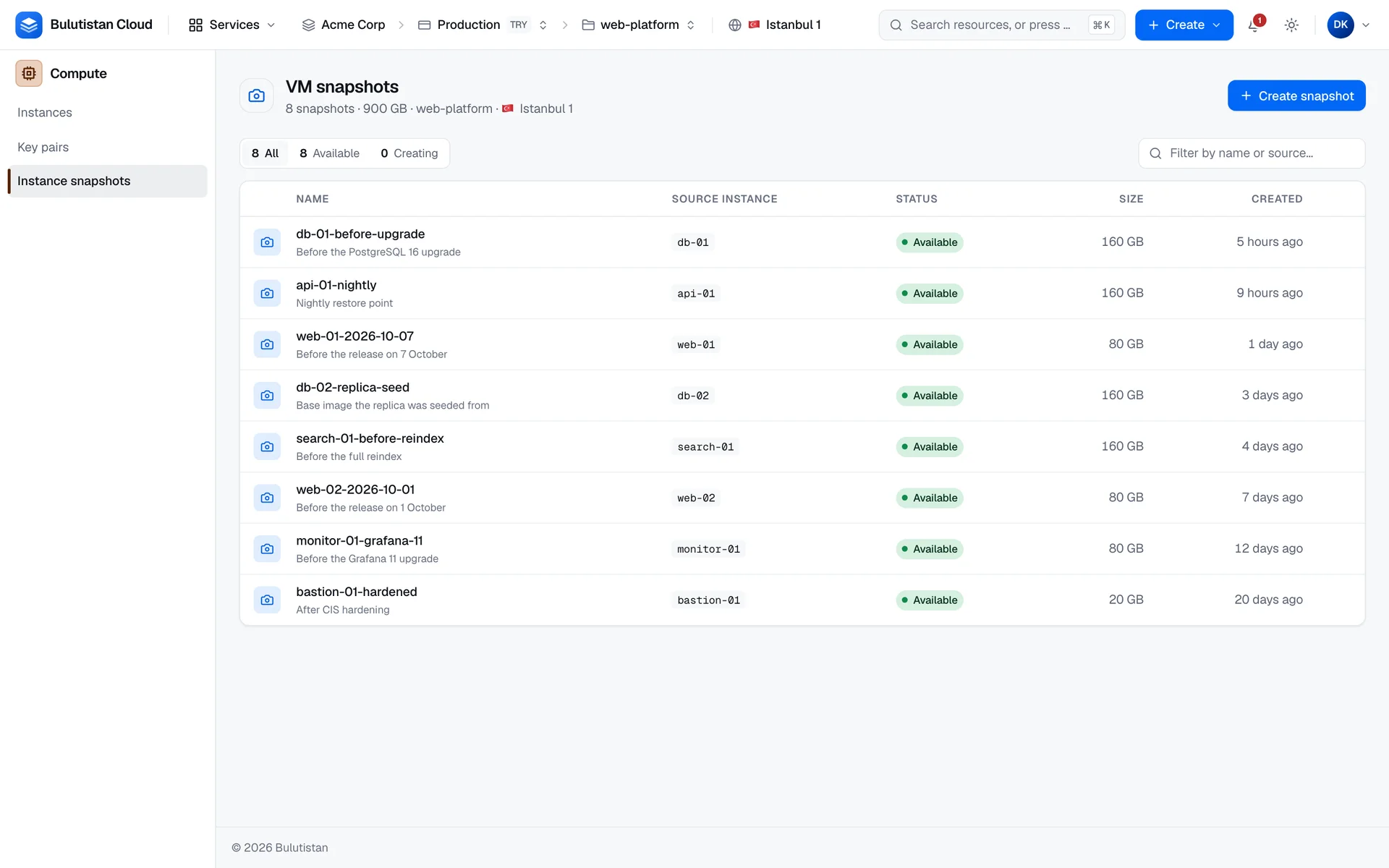
On the restore point's page, the Allocated size is the size of the instance's OS disk when you created the restore point. If the restore point fails, its status is Error, and the list and its page show the reason.
What a restore point keeps in use
The cloud keeps the copies of the instance's disks for as long as the restore point exists. While it exists, the volumes that it copied can't be deleted. See What blocks a deletion.
If you delete the instance together with its OS disk, the instance is deleted, but the OS disk stays in Block Storage with the status Error, and it keeps being billed. Delete the restore point, and then delete the volume.
Tag a restore point
On the restore point's page, select the Tags tab, change the tags, and save them. Tags follow the same rules as instance tags. See Organize resources with tags.
Delete a restore point
In the console, go to ComputeInstance snapshots, and select the restore point.
Select Delete, and select Delete again to confirm.
Deleting a restore point also deletes the copies of the disks that it holds, and it can't be undone. A restore point that's still Creating can't be deleted: wait until it's available or has failed.
Billing
The create page shows the rate. For how restore points are billed, see Billing.