
What is Virtual Machines?
Learn what Virtual Machines offers, how instances, disks, and networking fit together, and which dimensions you are billed for.
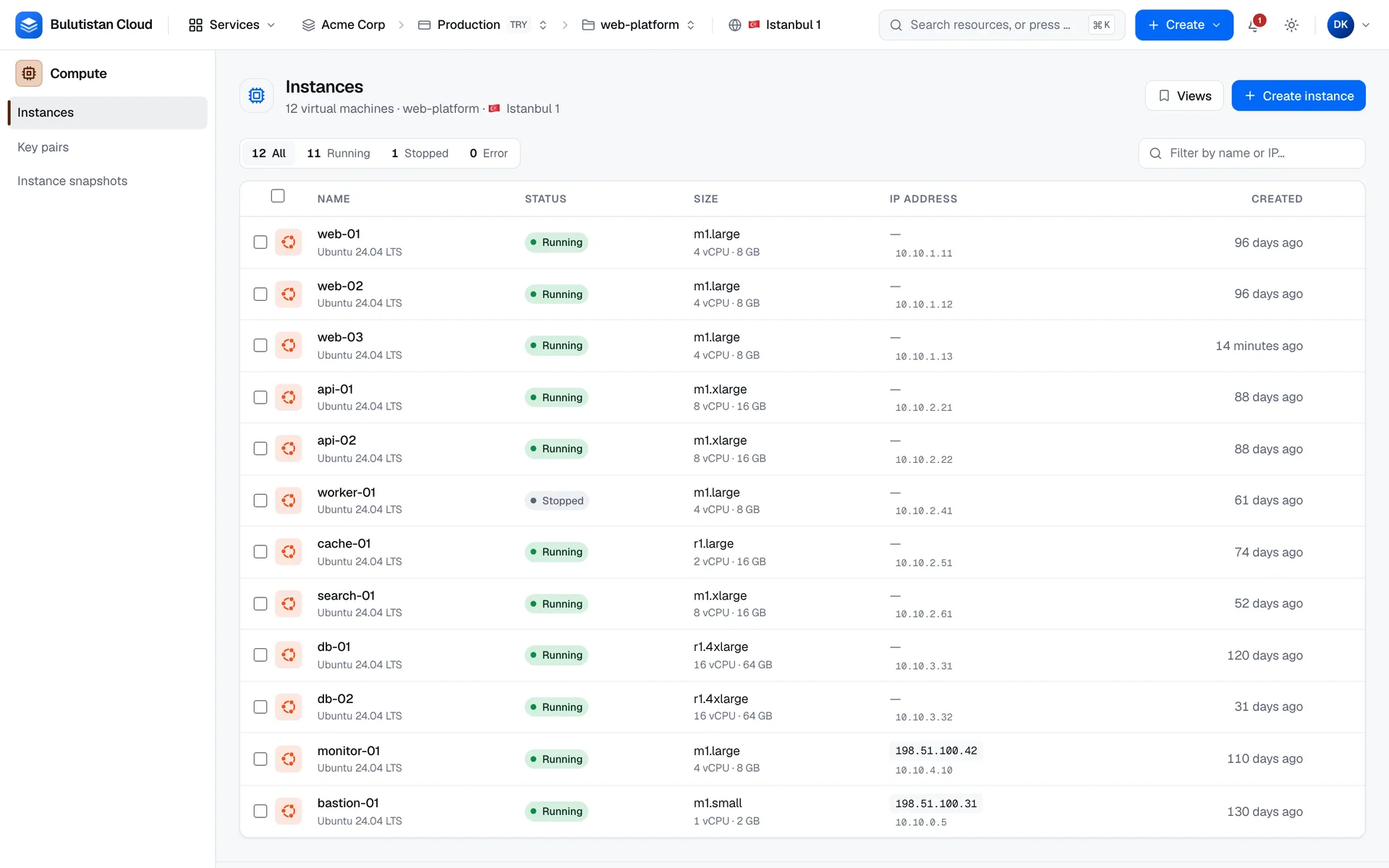
Virtual Machines lets you run virtual machines, called instances in the console, in your projects. You choose a size, a boot source, disks, and networking in a guided wizard, and you see the estimated cost and the quota the request uses before anything is created. Instances run in the regions your platform offers, such as Istanbul 1.
Key features
- Guided creation. An eight-step wizard shows the estimated cost, your quota after the request, and the REST equivalent of the call before you create anything. See Create a virtual machine.
- Sizes from the region catalog. Compare every size published in the region by vCPU, memory, GPU, and price, with a live availability check. See Sizes and series.
- Three boot sources. Start from an image, an existing bootable volume, or a snapshot. See Boot sources.
- SSH keys, a password, or both. Install one or more SSH key pairs, an administrator account with a password, or both, on the first boot. See Manage SSH key pairs.
- First-boot configuration. Pass cloud-init user data that runs when the instance boots for the first time. See Configure a virtual machine at first boot with cloud-init.
- Batch creation. Create up to 20 identical instances from one request. See Create several identical instances.
- Browser console and serial log. Open a VNC console in your browser, or download the serial console log when the network is unreachable. See Connect to a virtual machine.
- Resize with a price comparison. Compare the hourly and monthly prices of the current and the new size before you confirm. See Resize a virtual machine.
- Deletion protection. The console and the REST API refuse to delete a protected instance until you turn the protection off. See Start, stop, reboot, and delete a virtual machine.
- Tags for cost analysis. Group the cost of your instances by tag in Cost Explorer. See Organize resources with tags.
How it works
An instance belongs to a project and runs in the project's region. Its size sets the number of vCPUs and the amount of memory, and its price. Every instance boots from a Block Storage volume, its OS disk: when you boot from an image or a snapshot, the platform creates a new OS disk in the size you choose; when you boot from an existing bootable volume, that volume becomes the OS disk. Data disks are additional volumes that you add when you create the instance or attach later.
Network interfaces connect the instance to your virtual networks. Security groups filter its traffic, and a Floating IP gives it a public IPv4 address. Your user data and the SSH keys reach the instance through cloud-init on the first boot, so use images that run cloud-init.
Creating, starting, stopping, resizing, and deleting an instance run as asynchronous operations. The console refreshes the instance while it changes state, and an instance accepts one lifecycle action at a time.
Use cases
- Web and application tiers. Run web and application servers behind a load balancer, and create them in batches from your own image.
- Business applications. Run line-of-business applications and databases in the regions your platform offers, such as Istanbul 1.
- Development and test. Create short-lived environments that are billed per second, and track their cost with tags.
Billing
Virtual Machines bills these dimensions:
| Dimension | How it's billed |
|---|---|
| Compute | Per second at the size's hourly rate, from creation, while the instance is Running or Stopped. |
| OS disk and data disks | As Block Storage volumes, per GB-month at each volume's tier rate, for as long as the volume exists. |
| Floating IP | Per hour while the address is allocated, whether or not it's associated with an instance. |
| Monitoring | Per hour while monitoring is on, when monitoring has a price in your region. |
| Add-ons and licenses | For the period you choose (hourly, monthly, or yearly) while they're attached to the instance. |
For when each dimension is billed, see Power states and billing. For how usage becomes charges on your invoice, see How billing works. For prices, see Pricing.
Limits
- Up to 20 instances in one create request.
- Up to 8 data disks when you create an instance, each from 1 to 4,096 GB.
- A new instance's name must be unique within the project.
- Instances, vCPUs, RAM, volumes, volume storage, and Floating IPs count toward the subscription's quota and the project's allocation.
For all limits, see Virtual Machines limits. To request a quota increase, see Quotas.
Related services
- Images: capture an instance as an image and launch new instances from it.
- Snapshots: create restore points and boot new instances from them.
- Block Storage: the volumes behind OS disks and data disks.
- Virtual Networks: networks, subnets, and routers for your instances.
- Security Groups: rules that filter instance traffic.
- Floating IPs: public IPv4 addresses.
- Monitoring & Alerts: instance metrics and alert rules.
- Cost Management: analyze and budget your spend.
Next steps
Quickstart: Create a Linux virtual machine
Create an instance with an SSH key pair and a public IP, and sign in to it.
Create a virtual machine
Every step and option of the creation wizard.
Connect to a virtual machine
SSH, the browser console, and the serial console log.
Power states and billing
What each state means and what keeps being billed.