Sizes and series
Learn how sizes are organized into categories and series, what a size defines, how its price is shown, and how live availability affects your choice.
A size defines the compute resources of an instance: its number of vCPUs, its memory, the local disk it declares, and, for accelerated sizes, its GPUs. A size also carries the price you're billed for compute. In the API and in OpenStack tools, a size is called a flavor.
Categories, series, and sizes
The region's catalog arranges sizes in three levels:
- Category: a group of series for one kind of workload.
- Series: a family of related sizes inside a category.
- Size: one configuration that you select for an instance.
The region's operator defines the categories and series and publishes sizes in them. The wizard lists a size only when it's published and priced in your region, so it never offers a size that the region doesn't sell.
For example, on the Size step, the buttons above the table narrow the list: All, Recommended when the region recommends sizes, and one button per category.
What a size defines
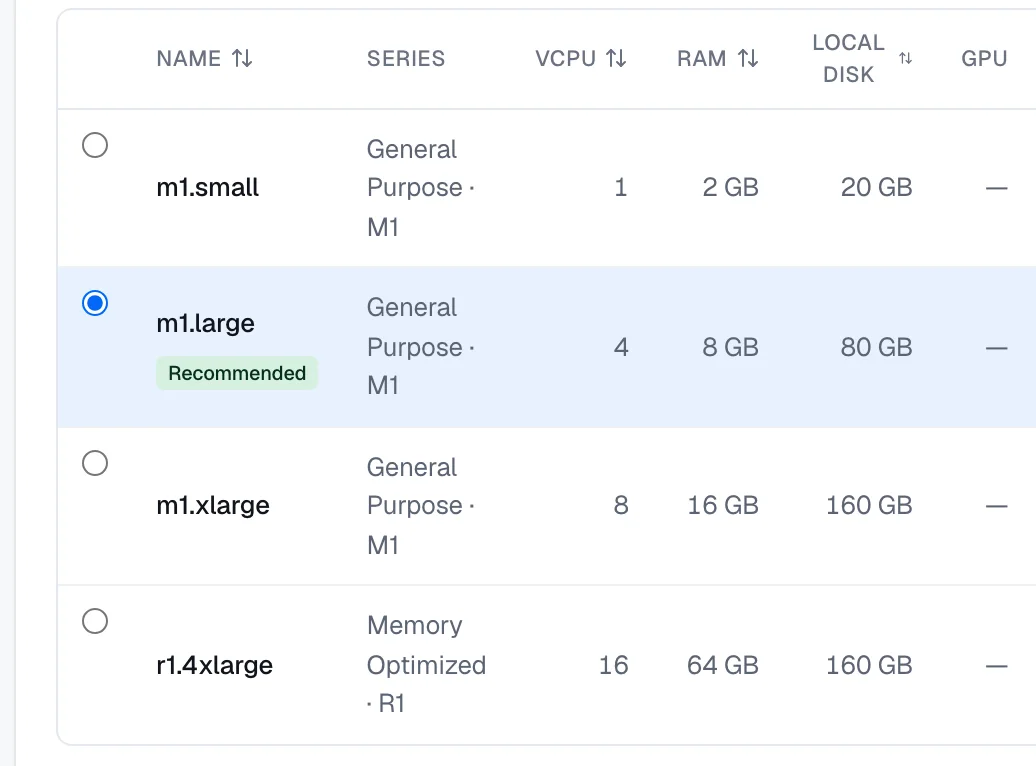
Each row of the size table has these columns:
| Column | Meaning |
|---|---|
| Name | The size's name. |
| Series | The category and series the size belongs to. |
| vCPU | The number of virtual CPUs. |
| RAM | The amount of memory. |
| Local disk | The disk size that the size declares, or a dash when it declares none. |
| GPU | The number and model of GPUs that one instance gets, for sizes that declare GPUs. |
| Hourly and Monthly | The size's list prices in your region. |
For example, a row with 4 vCPUs and 8 GB of RAM gives every instance of that size 4 vCPUs and 8 GB of memory.
The local disk isn't your instance's OS disk. Every instance boots from a Block Storage volume. When you boot from an image or a snapshot, you set the volume's size on the Disks step, and the size's local disk doesn't limit it. For details, see Boot sources.
Prices
The table shows each size's hourly list price in your region and a monthly figure. The monthly figure is the hourly price × 730 hours.
Compute is metered per second at the hourly price. For example, an instance that exists for 30 minutes, from its creation until its deletion completes, is billed for half an hour of compute. The monthly figure is an estimate for a full month, not a separate rate. For which power states are billed, see Power states and billing.
The estimated cost next to the wizard adds the OS disk, data disks, Floating IP, monitoring, and any add-ons and licenses to the size's price.
Recommended sizes
The region can mark sizes as recommended. When it does, the wizard selects a recommended size when it opens, and the Recommended button shows only the recommended sizes. Otherwise, the wizard selects the first size in the catalog.
Live availability
When you open the Size step, the console asks the region which sizes it can place right now. A size that the region can't place is disabled, and its row says why:
- Not enough free vCPU right now
- Not enough free memory right now
- Not enough free disk right now
- No capacity for this size type right now — try another family
- Capacity for this size couldn't be verified right now
- Can't be placed right now
Turn on Only available to hide every size that you can't select.
Some sizes stay selectable but carry a note. For example, a GPU size can show GPU stock can't be verified in advance — it is checked when the instance is created. You can still create such an instance; the final check happens when the instance is created.
The availability check isn't a reservation. Other customers create instances at the same time. If a later check finds that your size can't be placed, the wizard clears your selection and asks you to pick another size. If capacity changes after the last check, the create is refused; select another size, or try again later. If the region can't answer the check, the wizard shows every size, and a size that can't be placed is refused when you create the instance.
Image requirements
An image can require a minimum amount of memory. When you boot from such an image, sizes with less memory are disabled, and the wizard tells you how much memory the image needs. This requirement doesn't apply when you boot from a volume or a snapshot.
Find a size
On the Size step, you can:
- Search by name, series, or category.
- Filter by category, series, vCPU range, RAM range in GB, monthly price range, and GPU: GPU sizes or Without GPU.
- Sort by name, vCPU, RAM, local disk, hourly price, or monthly price.
The table shows 25 sizes per page. The wizard keeps your search, filters, and sort while you move between steps.