
Quickstart: Create a Linux virtual machine
Create a Linux virtual machine with an SSH key pair and a public IP address in the console, sign in over SSH, and delete it again.
In this quickstart, you create a Linux instance that you can reach over SSH, sign in to it, and delete it again. The quickstart has 22 steps in three parts.
Before you begin
- You need the Owner or Contributor role, or a custom role with Manage access to Compute / Instances and to Networking, on the subscription or on the project.
- The project needs a network. To reach the instance from the internet, the network's subnet must be attached to a router that has an external gateway. To set one up, see Quickstart: Create a network with a subnet and a router.
- The subscription's quota and the project's allocation need room for one more instance, its vCPUs and memory, one volume, Volume Storage for the OS disk's size, and one Floating IP. The wizard shows your quota before you create the instance.
- You need an SSH client on your computer, such as OpenSSH.
Create the instance
In the console, go to ComputeInstances.
Select Create instance. The wizard opens on the Basics step.
In Virtual machine name, enter a name such as web-01. Use lowercase letters, numbers, and hyphens.
Under Boot source, keep Image, and select a Linux image in the image list.
Under SSH key pairs, select New SSH key pair.
If the project already has key pairs, the wizard selects the first one for you. Clear its check box if you don't have its private key. If you do have it, keep it selected instead of creating a new key pair, and continue with step 9.
In the dialog, enter a Key pair name, keep Generate new, and select Generate key pair.
Select Download .pem to save the private key.
Important
The console shows the private key only once. Download it then. If you lose it, you can't sign in with this key pair.
Select I've saved it — close. The new key pair is selected for the instance.
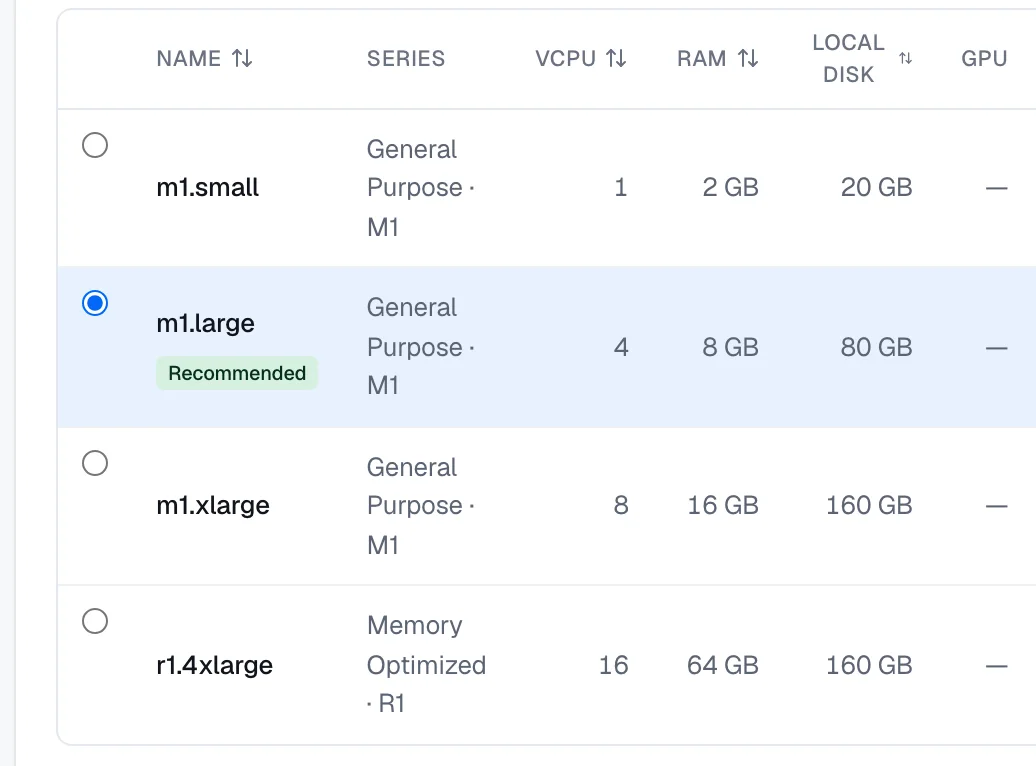
Go to the Size step, and select a size. Sizes that the selected image or the region's capacity can't run are disabled.
Go to the Networking step, and select your network in the Add a network… list.
Keep Allocate a floating IP turned on. The platform reserves a public address and associates it once the instance is running.
Under Quick security rules, select Remote access (SSH), and select My IP next to its source field. This limits SSH access to your current public IP address.
Select Create security group. The new security group is selected for the instance.
Go to the Review + create step, and check the summary, the estimated cost, and your quota after the request.
Select Create. A confirmation opens with the summary and the estimated cost. The instance isn't created yet.
Select Create instance.
Verify
Wait until the instance's status changes from Building to Running. The console opens the instance page and refreshes it while the instance changes state.
On the Overview tab, note the Public IP address.
On your computer, move the downloaded key file to ~/.ssh/, and restrict its permissions so that only you can read it:
mv ~/Downloads/<key-name>.pem ~/.ssh/
chmod 600 ~/.ssh/<key-name>.pem
Replace <key-name> with the name of your key pair; the downloaded file has that name. If your browser saves downloads to another folder, use that folder instead of ~/Downloads.
Select the Connect tab, copy the ssh command, and run it in a terminal:
ssh -i ~/.ssh/<key-name>.pem <user>@<public-ip><user>: the user to sign in as. The Connect tab shows the suggested user for the image, for exampleubuntufor Ubuntu images.<public-ip>: the instance's public IP address.
You're signed in when the shell prompt of the instance appears.
Clean up resources
Deleting the instance stops its compute billing. Its OS disk is deleted with it, and the Floating IP that the wizard allocated is released.
On the instance page, open the More actions menu, and select Delete.
Leave Keep the root (boot) volume cleared, and select Delete to confirm.
The security group and the key pair stay in the project. If you don't need them, delete them on the Security Groups and key pairs pages.