
Create a virtual machine
Create one or more virtual machines with the console's eight-step wizard, from the boot source and size to networking, user data, and the final review.
Use the creation wizard to configure and create one instance, or up to 20 identical instances, in your project. The instance isn't created until you confirm on the last step. Key pairs, security groups, and networks that you create inside the wizard are created right away.
Before you begin
- You need the Owner or Contributor role, or a custom role with Manage access to Compute / Instances, on the subscription or on the project. To create a network or a security group inside the wizard, you also need Manage access to Networking.
- Decide how you'll sign in: with an SSH key pair, an administrator password, or both. You can create a key pair inside the wizard. See Manage SSH key pairs.
- Make sure the project has a network, or create one inside the wizard. To reach the instance from the internet, the network's subnet must be attached to a router with an external gateway. See Internet access: SNAT and Floating IPs.
- Make sure the subscription's quota and the project's allocation have room for the instance. Before you create anything, the wizard shows how the request changes your quota usage. See Virtual Machines limits.
Open the wizard
In the console, go to ComputeInstances.
Select Create instance.
The wizard has eight steps, listed on the left on wide screens. The estimated cost and your quota after the request appear on the right and update as you choose. You can move between steps in any order; the Review + create step opens only when every required field is complete.
The wizard keeps your input as a draft in the current browser tab, so a reload returns you to the same step. The administrator password and the user data aren't kept in the draft. To start over, select Discard on the notice that the wizard shows for a restored draft.
Basics
In Virtual machine name, enter a name. While the field is empty, the wizard suggests an unused name that you can select.
To create several identical instances, enter a number in Number of instances. Otherwise, leave it at 1. See Create several identical instances.
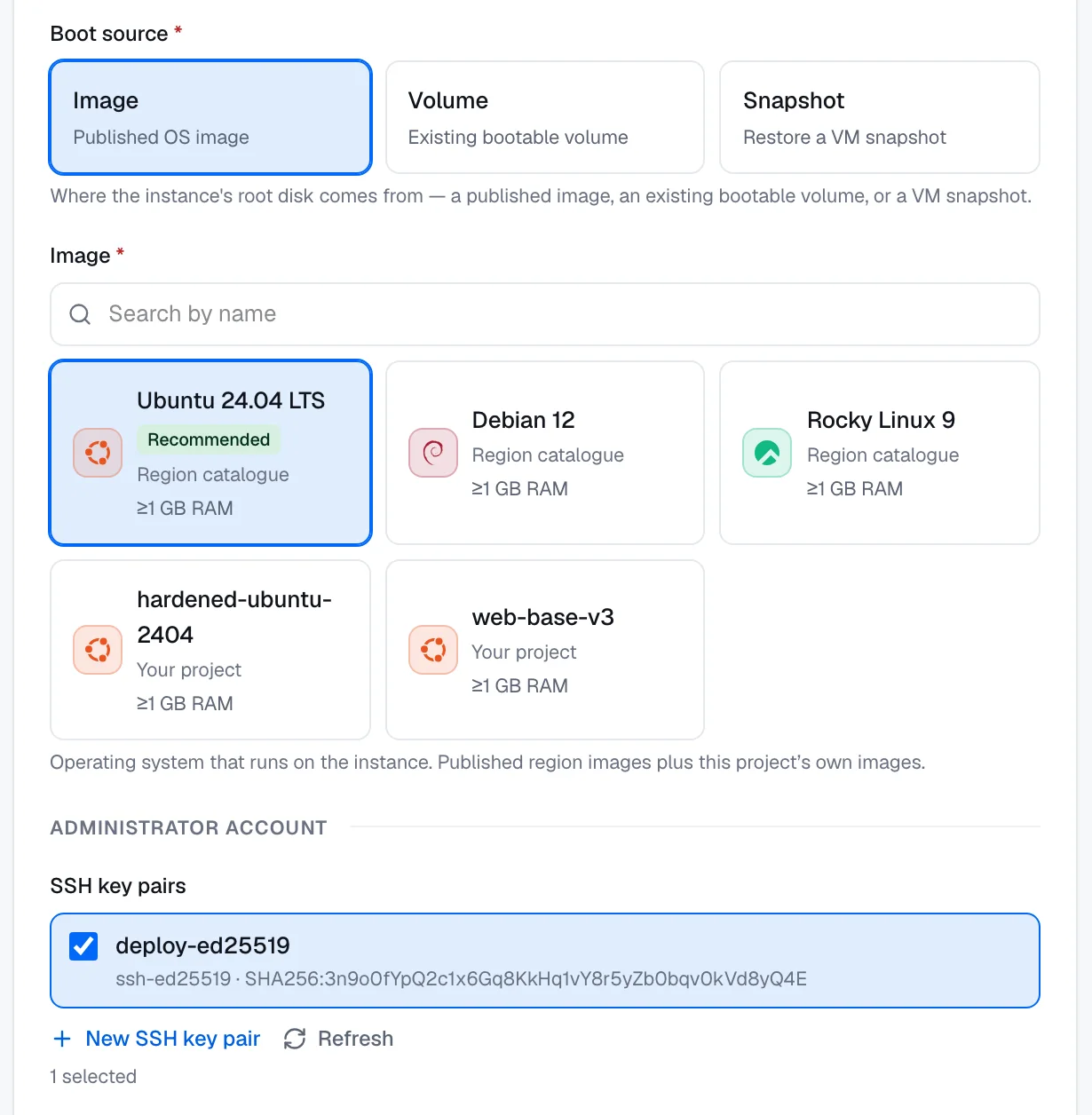
Under Boot source, select Image, Volume, or Snapshot, and then select the image, volume, or snapshot to boot from. See Boot sources.
Under SSH key pairs, select one or more key pairs. The wizard selects the project's first key pair for you. To create or import a key pair without leaving the wizard, select New SSH key pair.
Optional: to sign in with a password, turn on Set an admin password, and enter a Username and a Password. The account is set up on the first boot, with sudo access, and SSH password login is turned on.
You must give at least one credential: an SSH key pair, an administrator password, or both. Each selected public key is installed for the image's default user and, if you set a password, for the administrator account too.
| Field | Rules |
|---|---|
| Virtual machine name | 1 to 63 characters: lowercase letters, numbers, and hyphens. Unique within the project. |
| Number of instances | A whole number from 1 to 20. |
| SSH key pairs | Up to 10 key pairs per instance. |
| Username | Up to 32 characters: lowercase letters, digits, hyphens, and underscores, starting with a letter or an underscore. The default is clouduser. |
| Password | 8 to 72 characters, without line breaks. |
The subscription, project, and region are shown for reference. The instance is created in the project's region.
Size
On the Size step, select a size in the table.
The table lists every size published in the region, with its vCPUs, memory, GPUs, and hourly and monthly prices. You can search, filter, and sort it. Sizes that the selected image or the region's current capacity can't run are disabled, with the reason. For details, see Sizes and series.
Disks
In OS disk size (GB), enter the size of the OS disk, or drag the slider. The minimum is the image's minimum disk size, or the snapshot's size.
Optional: under Data disks, select Create and attach a new disk for each data disk that you want, and set its name, size in GB, and tier.
- The default OS disk size is 30 GB. The slider goes up to 1,024 GB; to set a larger disk, enter the number. OS disk type shows the volume class that the region provisions, and you can't change it.
- When you boot from a volume, there's no OS disk size to set; the volume's size applies.
- New data disks start as
datadisk-1,datadisk-2, and so on, with 128 GB on the Standard SSD tier. You can add up to 8 data disks, each from 1 to 4,096 GB, with a name of 1 to 63 characters. Only the tiers that the region provisions are listed, and each disk is priced at its own tier's rate.
Data disks are created blank and attached once the instance is running, in list order. If the cloud refuses to create a data disk, the whole create fails: the instance and the disks already created for it are removed from the cloud, and the instance shows Error with the reason. If a disk is created but can't be attached, the instance is still created, and the disk stays in your project as an available volume. Data disks are Block Storage volumes: they're kept when you delete the instance. See Block Storage.
Networking
Under Networks, select the networks to connect in the Add a network… list. If the project has no network, select Create network.
Optional: for each network, keep Automatic under IP address, or select Specific IP and enter an IPv4 address.
Optional: under Network ports, select existing unattached ports to attach.
Under Floating IP, keep Allocate a floating IP turned on to give the instance a public IPv4 address, or turn it off.
Optional: under Quick security rules, select the presets that you need, adjust each source, and select Create security group.
Under Security groups, select the security groups to apply, or leave the selection empty to use the project's default security group.
Network interfaces. Interfaces attach in the order shown, and the first one is the primary interface. Use the arrows to reorder them. An external network appears in the list marked as public; your project can attach one directly only if the region's operator allows it. A network that you create inside the wizard is private: to reach the internet, it needs a router with an external gateway.
Specific IP addresses. The wizard checks a specific address before you create the instance: it must be inside one of the network's subnets and inside the allocation pool, and it can't be the subnet's gateway or an address that's already in use.
Floating IP. The platform reserves a public address from the region's pool and associates it once the instance is running. If the association fails, the instance is still created, without a public address. When you delete the instance, the platform releases this address. If you turn the Floating IP off and don't attach an external network, the instance can't be reached from the internet, and the review step warns you about it.
Quick security rules. Each preset adds one inbound rule from a source address range. The default source is 0.0.0.0/0, the entire internet; select My IP to use your own public IP address instead.
| Preset | Port |
|---|---|
| Remote access (SSH) | 22/tcp |
| Remote desktop (RDP) | 3389/tcp |
| Web (HTTP) | 80/tcp |
| Secure web (HTTPS) | 443/tcp |
| Ping (ICMP) | ICMP |
Selecting a preset doesn't create anything. Create security group creates a new security group with the selected rules and selects it for the instance. Presets that you select but don't create are listed on the review step as not applied.
Security groups. You can search the groups and preview their rules. To create a group without leaving the wizard, select New security group. If you select groups and then clear them all, the instance is created without a security group. The review step shows this as None — no security group will be applied.
Add-ons & licenses
Optional: on the Add-ons & licenses step, select the add-ons and licenses that you want, and choose a billing period for each: Hourly, Monthly, or Yearly, as offered.
A license that comes with the selected image is selected and locked. For how Floating IPs, add-ons, licenses, and monitoring are billed, see What keeps being billed.
Advanced
Optional: in User data (cloud-init), paste a cloud-init configuration or script, or select Load from file. It runs on the first boot only. See Configure a virtual machine at first boot with cloud-init.
Optional: under Management, turn on Enable monitoring to collect CPU, memory, disk, and network metrics.
Monitoring is off by default. You can turn it on or off later on the instance's Monitoring tab.
Tags
Optional: on the Tags step, select Add tag, and enter a key and a value.
Rows without a key are ignored. See Organize resources with tags.
Review and create
Go to the Review + create step. If something required is missing, the wizard doesn't open the step and tells you what's missing. On wide screens, the cost panel lists each missing item with a link to its field.
Check the summary, the warnings, your quota after the request, and the estimated cost. Select Edit next to a section to change it.
Select Create.
In the confirmation, check the summary, the estimated cost, and how the request changes your subscription's monthly forecast, and then select Create instance.
The review step can show these warnings. None of them blocks the create:
- A selected security group opens a sensitive port, such as SSH, RDP, or a database port, to the entire internet.
- The instance has no public IP address.
- The availability of the selected size couldn't be fully verified.
- Quick security rules are selected but not created.
If the request would exceed a quota, the review step warns with This request exceeds your quota. If you create anyway, the create is refused. Lower the request, or get a quota increase. See Quotas.
Under REST equivalent, the review step shows the exact HTTP request that Create sends, as a curl command. To run it, set PC_TOKEN to an API token. The administrator password isn't copied into the command; set ADMIN_PASSWORD instead. For the request format, see POST/scopes/{scopeId}/compute/instances.
On wide screens, the estimated cost appears in a panel next to every step of the wizard. On the Review + create step, it also appears above Create at every screen width, and the confirmation shows it again.
The estimate uses list prices and isn't a quote. Network traffic and other usage-based charges aren't included.
Result
For a single instance, the console opens the new instance's page. The status is Building at first and changes to Running when the instance is ready; the page refreshes by itself.
For several instances, the confirmation shows each instance with its own status: Building, Ready, or Failed with the reason. Select Go to instances to open the instance list.
Create several identical instances
In Number of instances, enter a number from 2 to 20. The name becomes a Name prefix, and the instances are named with the prefix and a two-digit number: for the prefix web, the names are web-01, web-02, and so on. The wizard shows the names before you create them.
- Every generated name must be at most 63 characters, and none can already exist in the project.
- You can't create several instances when you boot from a volume, attach an existing port, or set a specific IP address. The wizard tells you which choice is in the way.
- The request is accepted as a whole: quota and capacity are checked for all the instances at once, and nothing is created if either check fails. If the region can place fewer instances than you asked for, the error tells you how many fit when the region reports that number.
- The estimate shows each line at the per-instance rate and multiplies the totals by the number of instances.
After the request is accepted, each instance is built on its own. A failure affects only that instance.
Troubleshooting
| Message | What to do |
|---|---|
| Give at least one credential: an SSH key, an admin password, or both. | Select an SSH key pair, or turn on Set an admin password. |
| No network exists in this scope yet — create one to continue. | Select Create network, or create a network under Virtual Networks first. |
| We couldn't place this size right now. Capacity changed between the check and the create, or the hardware this size needs is fully allocated. Try another size, or try again later. | Select another size, or try again later. |
| There is not enough capacity for this many instances right now. Lower the number and try again. | Lower Number of instances. |
For quota errors, duplicate names, and other problems, see Troubleshoot virtual machines.