
Find your way around the console
Learn the parts of the console, from the top bar and the scope picker to the Services menu, the command palette, the dashboard, and your preferences.
The console is where you create and manage your resources. Every page shares the same top bar, and each service with several pages has a sidebar that lists them. This article describes what you find where.
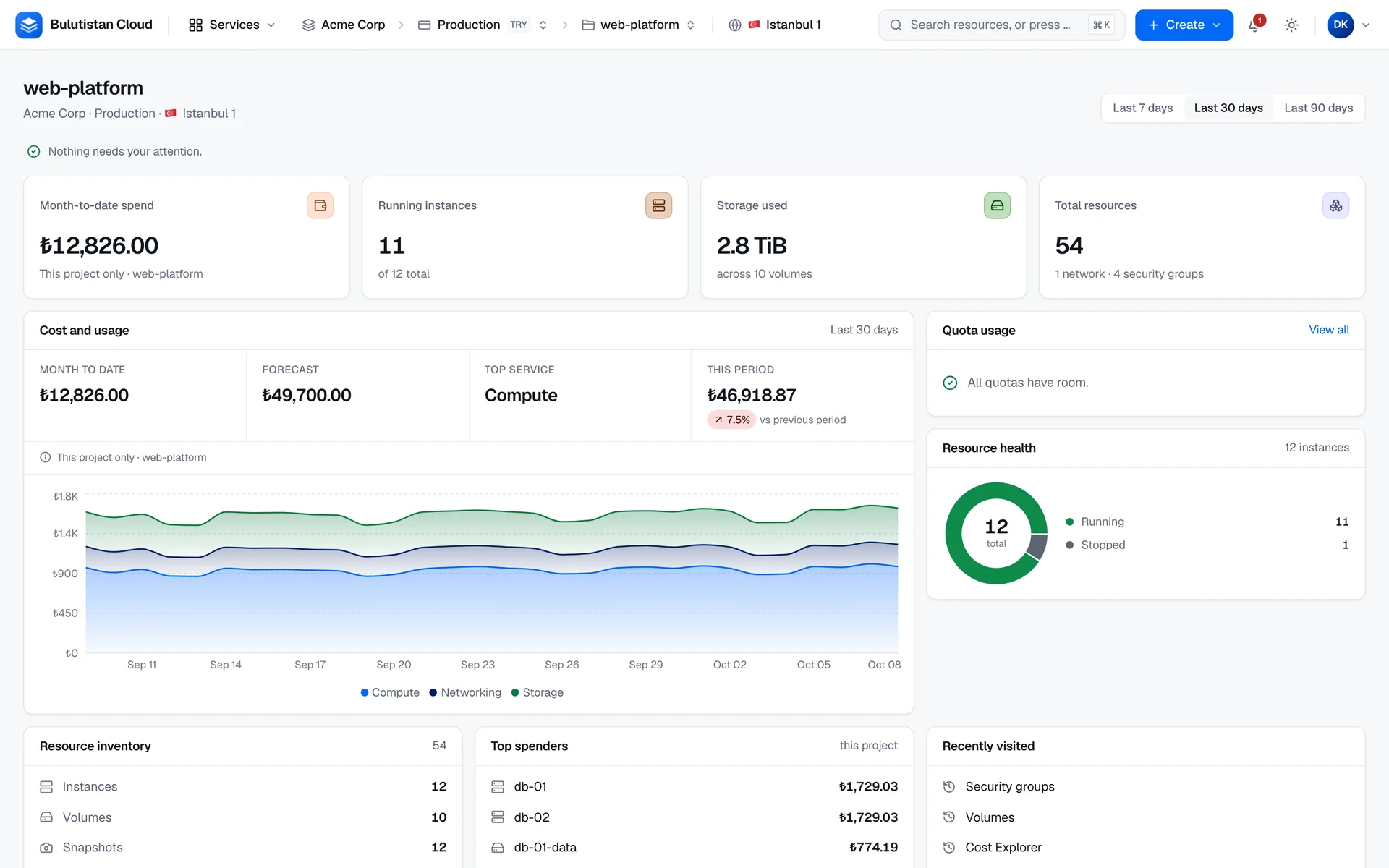
The top bar
From left to right, the top bar has these parts:
| Part | What it does |
|---|---|
| Logo | Opens the dashboard of the project you're working in. |
| Services | Lists every service. See Services and favorites. |
| Scope picker | Shows the tenant, subscription, project, and region you're working in, and switches between tenants, subscriptions, and projects. See Tenants, subscriptions, projects, and regions. |
| Search | Opens the command palette. See Search and the command palette. |
| Create | Opens the creation form of an Instance, a Network, or a Volume. |
| Operations | Appears while operations, such as creates and deletes, are running in the project, and for 2 minutes after they finish. |
| Notifications | Your latest notifications. See Notifications. |
| Appearance | The color theme: System, Light, or Dark. |
| Account | Your name and email, Profile, Account settings, Billing, and Sign out. |
On a narrow screen, the scope picker becomes a single button that shows the project and the region, and a menu button opens the service's sidebar.
The region in the scope picker is shown, not chosen: it belongs to the project. To work in another region, switch to a project there.
Services and favorites
Services lists the services in groups: General, Compute, Storage, Networking, Observability, Security, Billing, and Help. Selecting a service opens its first page. A service that your project's region doesn't offer isn't listed.
To keep a service at the top of the menu, select the star on its row. Your starred services appear under Favourites. They're saved in your browser, for every project.
Each service with several pages has a sidebar on the left that lists them. On a narrow screen, open the sidebar with the menu button at the start of the top bar.
Search and the command palette
To open the command palette, press ⌘K on macOS or Ctrl+K on other systems, or select the search field in the top bar. The shortcut works even while you're typing in a field.
When you haven't typed anything, the palette shows:
- Pinned: the instances of this project that you pinned with Pin on the Instances list. Pins are saved with your account.
- Recent resources: up to 5 resources that you opened from the palette in this project, saved in your browser.
- Actions: Switch project and Change theme.
- Quick actions: Create virtual machine, Create object bucket, and Create budget.
- Navigate: services and pages of the console.
When you type two or more characters, the palette also searches the project's resources by name: instances, instance snapshots, volumes, volume snapshots, backup plans, networks, security groups, routers, load balancers, and VPN connections. Floating IPs are found by their address. The 6 best matches are shown, and names that start with what you typed come first. The palette also lists the matching console pages under Navigate.
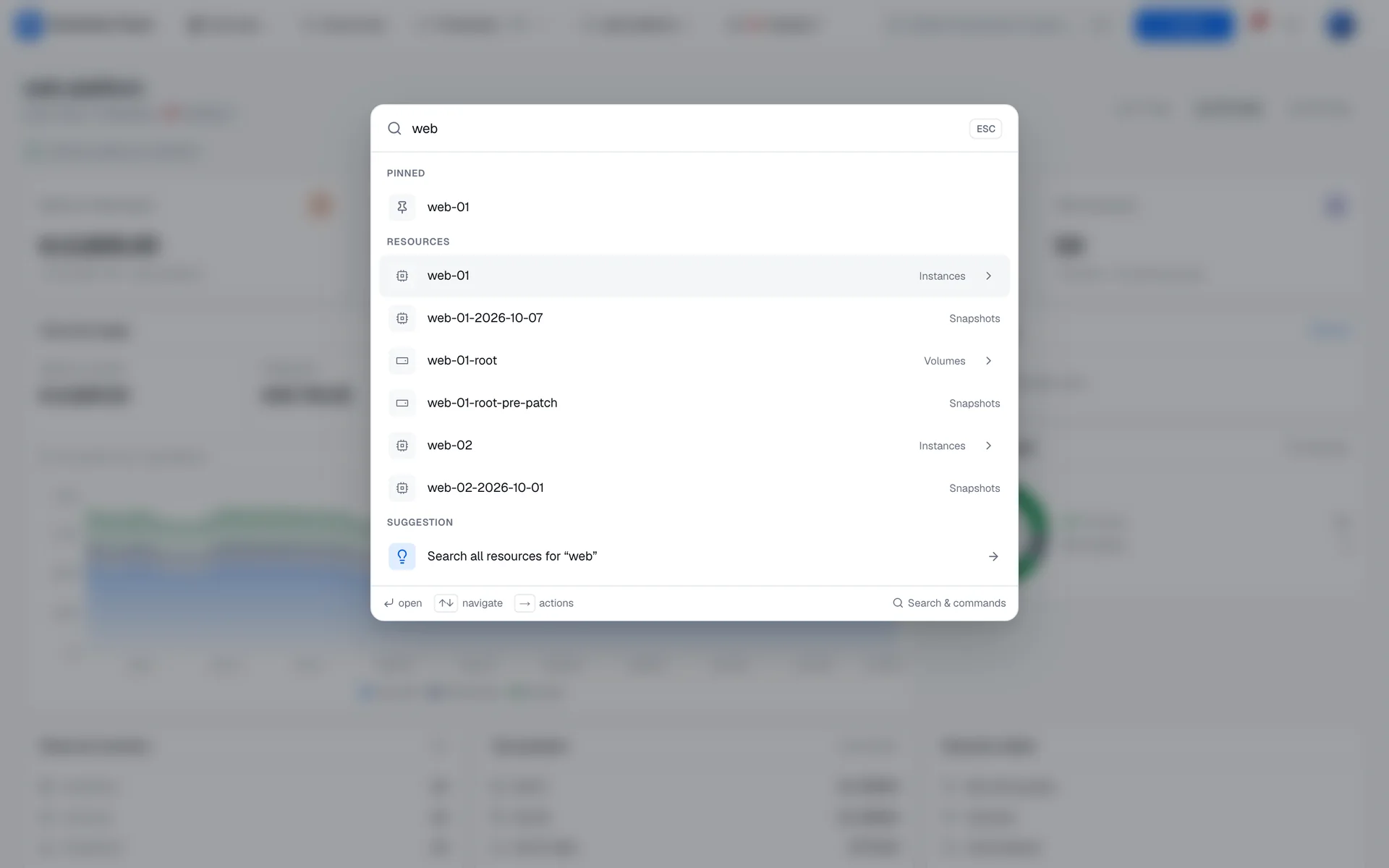
| Key | In the palette |
|---|---|
| Enter | Open the selected item. |
| ↑ and ↓ | Move through the list. |
| → | Show the actions of the selected resource, at the end of your search text. |
| Esc | Go back one level, or close the palette. |
The actions of a resource depend on its type. For an instance, they include starting, stopping, restarting, pausing, and resuming it, opening its console, and creating an image from it. For a volume, detaching it; for a Floating IP, disassociating it. The palette asks you to confirm an action that interrupts a resource, such as a stop or a detach.
Keyboard shortcuts
| Shortcut | What it does |
|---|---|
| ⌘K or Ctrl+K | Open or close the command palette. |
| ? | Show the keyboard shortcuts. It doesn't work while you're typing in a field. |
| Esc | Close a dialog or an overlay. |
The project dashboard
When you open a project, the console shows its dashboard, with the project's name, its tenant, subscription, and region, and a time range: Last 7 days, Last 30 days, or Last 90 days.
An empty project shows Start your first resource, with three steps: Launch a virtual machine, Create a network, and Invite your team.
Once the project has resources, the dashboard shows:
- what needs your attention, such as instances in an error state;
- Month-to-date spend, Running instances, Storage used, and Total resources;
- Cost and usage, Quota usage, and Resource health;
- Resource inventory, Top spenders, and Recently visited: the last 6 console pages that you visited in this project, saved in your browser;
- Recent activity and Quick create.
Notifications
The bell in the top bar shows the number of your unread notifications and lists the latest 10. Notifications are alert events and failed operations from the projects whose alerts and resources your role lets you read. Selecting one marks it as read and opens what it's about.
Select View all notifications to open the full list, where you can show only unread notifications and mark them as read or unread. Your read state is saved with your account, so it's the same in every browser.
Alerts reach you through alert rules and their delivery channels. See Send alerts by email and webhook.
Preferences
Go to SettingsPreferences to set:
- Theme: System, Light, or Dark. The theme applies at once, and is saved in your browser. You can also change it with Appearance in the top bar.
- Language: English, Türkçe, or Deutsch. The console reloads in the language you select.
- Timezone and Date format: how the console shows times and dates. Select Save preferences to save them with your account.
- Default project: see Choose your default project.
Under SettingsProfile, you can change your name, phone number, and job title.
What's new
SettingsWhat's new lists the changes to the console, newest first. When there's a notable change that you haven't seen in this browser, a notice appears above the console's pages, with See what changed and a close button. Closing the notice, or opening What's new, hides it.
Help and support
In Services, under Help, select Support for the support contacts of your deployment, such as an email address or a support portal, and a service status page where one is available. The page also shows your tenant, subscription, and region, to include in your request. Support tickets can't be opened from the console.