
Create a load balancer
Create a load balancer with the console's six-step wizard, from the VIP subnet and the listener to the pool, members, health monitor, and review.
Use the creation wizard to create a load balancer with one listener, one pool, the pool's members, and an optional health monitor. Nothing is created until you select Create load balancer on the last step.
Before you begin
- You need the Owner or Contributor role, or a custom role with Manage access to Load Balancers, on the subscription or on the project. Any role with Read access to Load Balancers can view load balancers.
- The project needs a network with a subnet for the VIP. To create one, see Quickstart: Create a network with a subnet and a router.
- Decide which listener and pool protocols to use. See Listener and pool protocols.
- The subscription's quota and the project's allocation need room for the load balancer and its listener, pool, members, and health monitor. See Quotas.
Open the wizard
In the console, go to NetworkingLoad balancers.
Select Create load balancer.
The wizard has six steps. On wide screens, the Summary panel on the right shows your main settings, each with an edit link to the step that sets it. You can move between the steps in any order: select a step in the list, or use Previous and the next-step button. The list marks a step as complete, or as needing attention, only after you leave it. To go straight to the last step, select Review and create.
LB details
In Load balancer name, enter a name.
In VIP subnet, select the subnet for the VIP. The wizard starts with the first subnet in the list.
Optional: in VIP address, enter the VIP. Leave it empty to have the platform assign one from the subnet.
In Size, select a size.
| Field | Rules |
|---|---|
| Load balancer name | 1–255 characters. The wizard removes spaces at the start and the end. Control characters and characters outside the Basic Multilingual Plane, such as most emoji, aren't allowed. Unique among the load balancers of your tenant. |
| VIP subnet | A subnet of one of the project's networks, listed by name and CIDR. |
| VIP address | Optional. An IP address inside the subnet's range, other than the subnet's gateway, network, or broadcast address. |
| Size | lb.small, lb.standard, or lb.large. The default is lb.standard. See Size. |
Listener
In Protocol, select HTTP, HTTPS, TERMINATED_HTTPS, or TCP. The wizard starts with HTTPS.
In Port, enter the port that the VIP listens on. The wizard starts with 443.
Optional: change Connection limit. The default is 20,000.
If Port or Connection limit is empty, 0, or not a number, the wizard sends the default instead: 443 or 20,000. The summary shows the value that the wizard sends.
TERMINATED_HTTPS adds a required TLS certificate field, and you can't complete the wizard with this protocol. See Listeners.
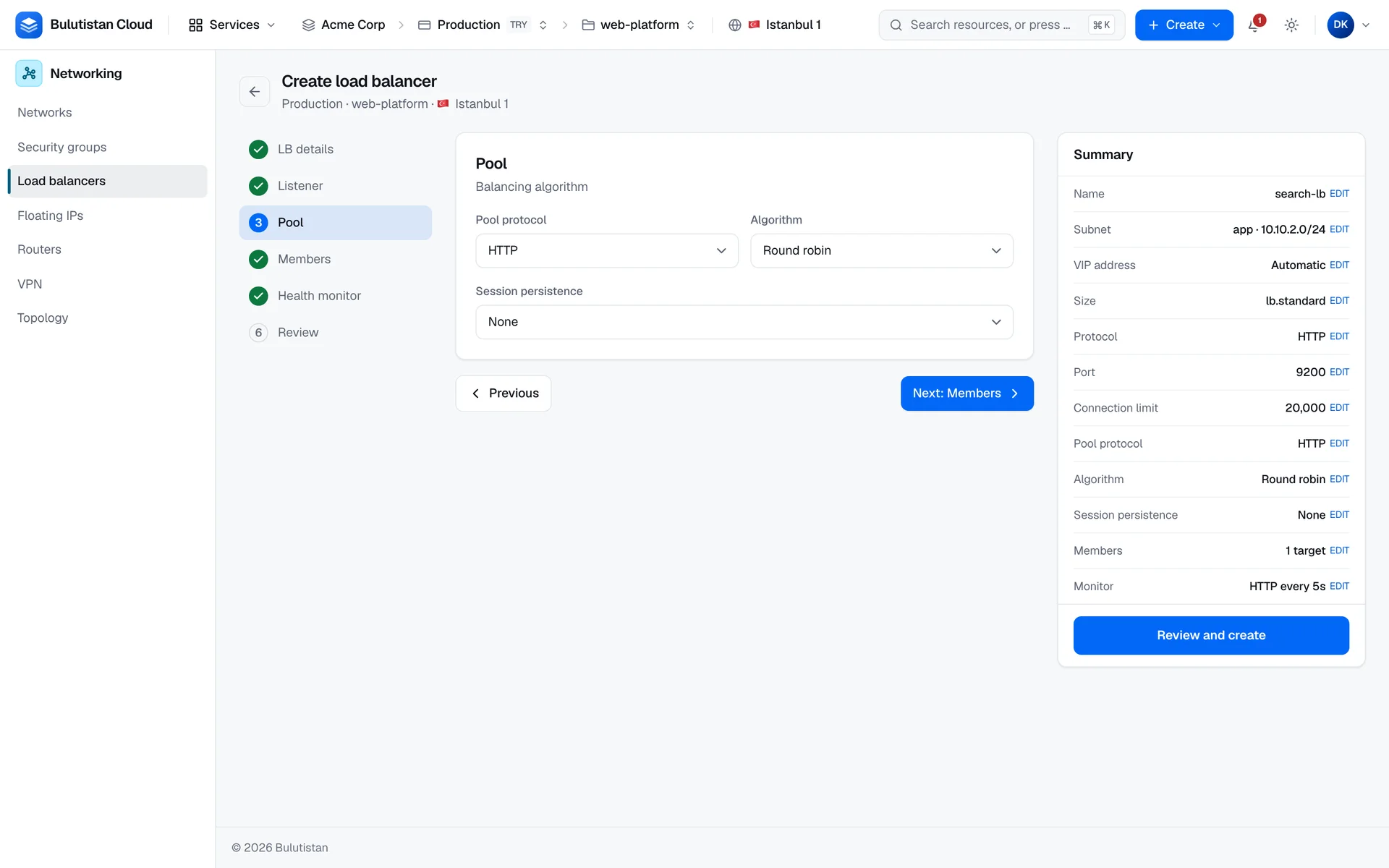
Pool
In Pool protocol, select HTTP, HTTPS, TCP, or PROXY. The wizard starts with HTTP.
In Algorithm, select Round robin, Least connections, or Source IP.
In Session persistence, keep None, or select SOURCE_IP or HTTP_COOKIE.
Important
The wizard starts with an HTTPS listener and an HTTP pool. Make sure that the pair you keep is one that the load balancing service accepts. If the service refuses the pair, the load balancer goes to Error: delete it, and create a new one. See Listener and pool protocols.
For what the algorithms and the persistence options do, see Pools.
Members
In the first row, in Server, select a server. The console fills in its address. To use an address that isn't one of the project's servers, keep Enter an address manually, and enter the address in Member address.
Set Port and Weight. They start at 8080 and 1.
To add another member, select Add member. To remove a row, select the remove icon at its end.
- The step is optional. You can add targets later on the load balancer's page.
- A row without an address is left out of the request.
- A port or weight that's empty, 0, or not a number is sent as 8080 or 1.
- The server list shows the project's servers; if the list is cut short, the step says so. A server without an IP address is listed as web-03 — no IP address and can't be selected.
- If the server list can't be loaded, the step says so, and you can still enter addresses manually.
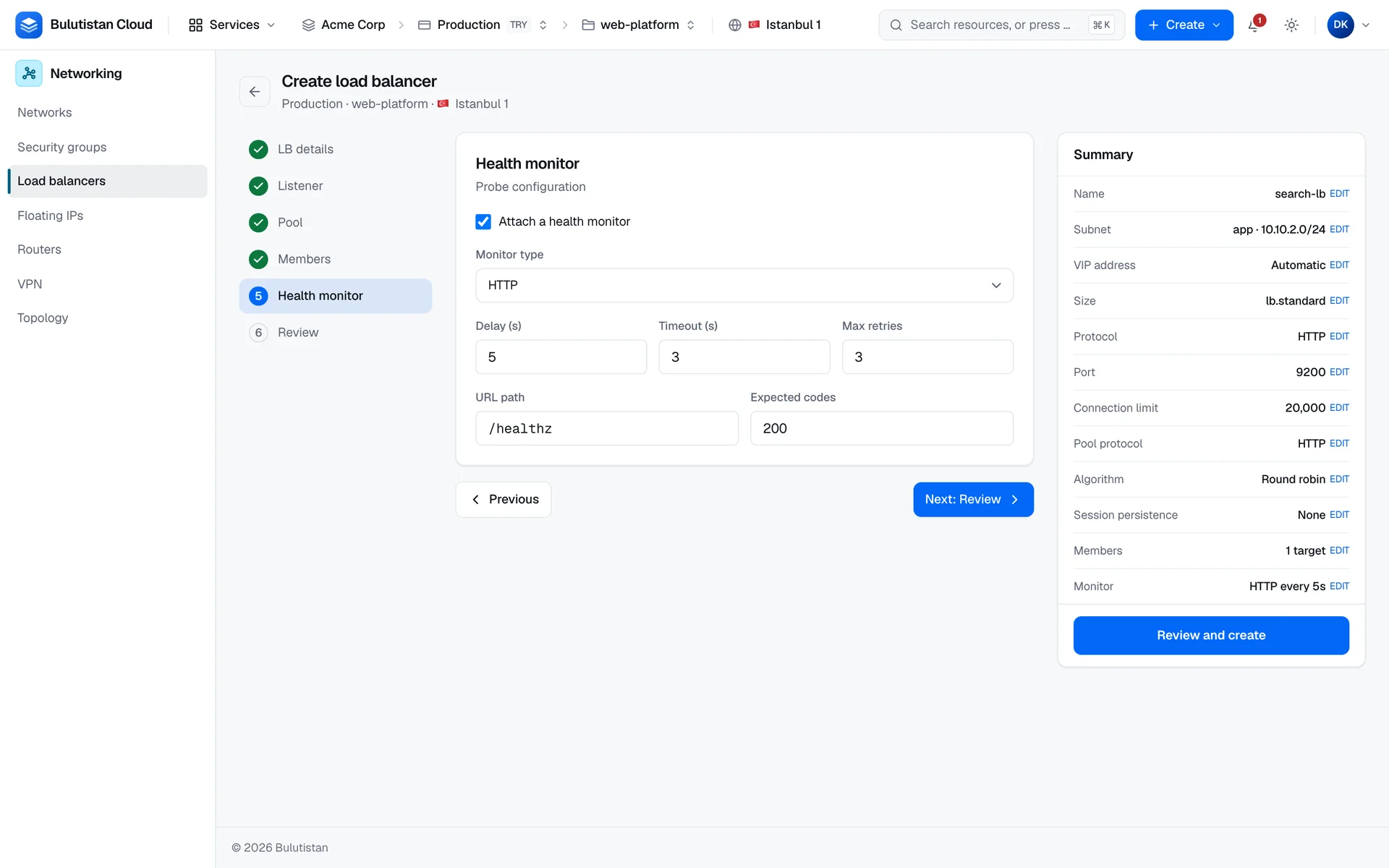
Health monitor
Keep Attach a health monitor selected. To create the pool without a health monitor, clear it, and continue with the next step.
In Monitor type, select HTTP, HTTPS, TCP, or PING.
Set Delay (s), Timeout (s), and Max retries.
For an HTTP or HTTPS monitor, set URL path and Expected codes.
| Field | Default |
|---|---|
| Monitor type | HTTP |
| Delay (s) | 5 |
| Timeout (s) | 3 |
| Max retries | 3 |
| URL path | /healthz |
| Expected codes | 200 |
If Delay (s), Timeout (s), or Max retries is empty, 0, or not a number, the wizard sends the default. An empty URL path is sent as /, and empty expected codes as 200.
In the console, you can attach a health monitor only here. To attach one to an existing pool later, use the REST API. See Health monitors.
Review and create
Go to the Review step.
Check every row. To change a setting, select edit on its row; the wizard opens the step that sets it.
Check the list under Backend members: each member's address, port, and weight.
Select Create load balancer.
Every value in the review comes from the request. The health monitor is summarized as its type and delay, and the members as their number. A setting that isn't sent shows None, and an empty VIP shows Automatic.
The create button stays unavailable until the wizard has what it needs, and the summary says what's missing: Enter a name and pick a subnet to continue, or A TLS certificate is required for TERMINATED_HTTPS.
If the platform refuses the request, the wizard shows Couldn't create the load balancer with the reason. When the reason concerns a field, the wizard opens the step with that field, marks the step, and shows the message on the field.
Result
The console confirms that the load balancer was created and opens its page. The provisioning status is Pending create at first and changes to Active when the load balancer is ready; the page refreshes by itself until then.
The load balancer has one listener, default-listener, connected to one pool, default-pool. Its members are named member-1, member-2, and so on.
If the build fails, the load balancer goes to Error, and its Activity tab shows the failed operation with its reason. If a load balancer fails to build, delete it, fix the cause, and create a new one.
Troubleshooting
| Message or symptom | What to do |
|---|---|
| No subnets in this scope — create a network first. | Create a network with a subnet in the project, and open the wizard again. |
| The certificate list couldn't be read. | Select a listener protocol other than TERMINATED_HTTPS. |
| "a load balancer with this name already exists" | Enter another name. Names are unique across all projects of your tenant. |
| A message that the VIP address isn't inside the selected subnet's range | Enter an address from the subnet's CIDR, or leave VIP address empty. |
| A message that the VIP address is the subnet's gateway, network, or broadcast address | Enter another address. |
A message that network/load-balancers isn't available in the region | The project's region doesn't offer load balancers. Use a project in a region that does. |
| The load balancer goes to Error after you create it | Read the reason on the Activity tab. In every case, delete the load balancer, and create it again. If the service refused the protocol pair or a setting, use other values. If a quota was exceeded, request an increase first; see Quotas. |