
Manage listeners, pools, and members
Add, edit, and delete listeners and pools, add and remove targets, change health monitors, and delete a load balancer, in the console or with the REST API.
Change an existing load balancer on its page in the console: add, edit, and delete listeners and pools, and add and remove targets. A few changes are available only through the REST API; this article says which.
Before you begin
- You need the Owner or Contributor role, or a custom role with Manage access to Load Balancers, on the subscription or on the project. Any role with Read access to Load Balancers can view load balancers.
- The load balancer must be Active. While it's Pending create or Pending delete, the console turns off adding, editing, and deleting listeners and pools, and adding targets. In a load balancer in Error, these changes are refused: delete it, and create a new one.
- For the REST API sections, you need an API token. See Authenticate with API tokens and Scopes, URLs, and request format.
Open a load balancer
In the console, go to NetworkingLoad balancers.
Select the load balancer.
The actions Add listener, Add target, Refresh, and Delete are at the top of the page. The tabs show Overview, Frontend / Listeners, Backend pools, Targets, Health monitors, and Activity. The edit and delete icons of a row appear when you point at the row.
Every change runs as an asynchronous operation, and the change appears in its table when the operation finishes. If an edit doesn't show yet, select Refresh. If the load balancing service refuses a change, the change doesn't appear, and the Activity tab shows the failed operation with its reason.
Add a listener
Select Add listener. The Frontend / Listeners tab opens with a new row.
Enter a name, select a protocol, and enter a port. The row starts with HTTP and port 80.
Select the check mark at the end of the row.
- The new listener gets a connection limit of 20,000. You can change it later.
- The listener isn't connected to a pool. To send its traffic to a pool, see Connect a listener to a pool.
- Each listener needs its own port and its own name on the load balancer.
- The row has no certificate field, so a TERMINATED_HTTPS listener is refused. See Listeners.
Connect a listener to a pool
The console can't set a listener's default pool. Use the REST API: change the listener with PATCH/scopes/{scopeId}/network/load-balancers/{loadBalancerId}/listeners/{listenerId}, and set defaultPool to the pool's name.
Read the load balancer with GET/scopes/{scopeId}/network/load-balancers/{loadBalancerId}. Its listeners list gives each listener's id, and its pools list each pool's name.
Send the change:
curl -X PATCH "https://<api-host>/api/v1/scopes/<project-id>/network/load-balancers/<load-balancer-id>/listeners/<listener-id>" \
  -H "Authorization: Bearer $PC_TOKEN" \
  -H "Idempotency-Key: $(uuidgen)" \
  -H "Content-Type: application/json" \
-d '{"defaultPool": "<pool-name>"}'<api-host>: the host name of the API.<project-id>: the ID of the project.<load-balancer-id>and<listener-id>: the IDs from the previous step.<pool-name>: the name of the pool, exactly as shown on the Backend pools tab.PC_TOKEN: an environment variable that holds your API token.
In the console, check that Default pool shows the pool's name exactly as on the Backend pools tab.
A pool that you add on the load balancer's page isn't connected to a listener either. To use it, make it a listener's default pool the same way.
Edit a listener
On the Frontend / Listeners tab, select the edit icon on the listener's row.
Change the name or the connection limit.
Select the check mark to save.
The protocol, the port, the default pool, and the TLS certificate are shown but can't be edited here. A connection limit that's empty, 0, or not a number is saved as 20,000.
Delete a listener
On the Frontend / Listeners tab, select the delete icon on the listener's row.
In the confirmation, select Delete.
Add a pool
On the Backend pools tab, select Add pool.
In the new row, enter a name, and select a protocol and an algorithm.
Select the check mark to save.
The pool starts with no members, no health monitor, and no session persistence, and it isn't connected to a listener. Each pool needs its own name on the load balancer.
Edit a pool
On the Backend pools tab, select the edit icon on the pool's row.
Change the name, the algorithm, or the session persistence.
Select the check mark to save.
A pool's protocol can't be changed. For the options, see Pools.
Delete a pool
On the Backend pools tab, select the delete icon on the pool's row.
In the confirmation, select Delete.
Add a target
Select Add target at the top of the page or on the Targets tab. The action is available when the load balancer has at least one pool.
Enter a Name and an Address, select the Pool, and set the Port. The port starts at 8080.
Select Add target.
The target joins the pool as a primary member with a weight of 1. A port that's empty, 0, or not a number is sent as 8080. A pool can't contain the same address and port twice.
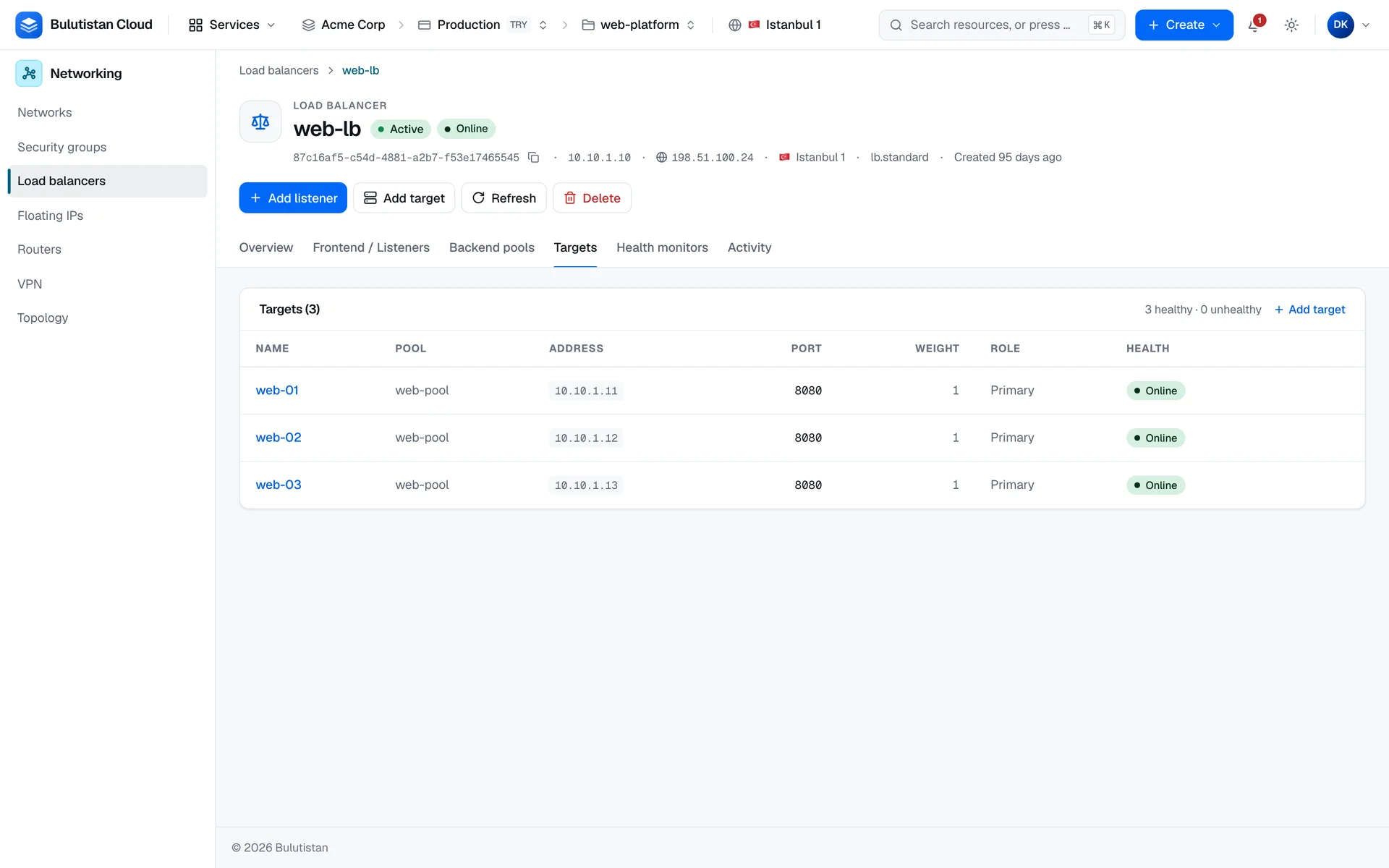
The Health column shows each member's operating status as last recorded, not a live check. See When statuses change.
Remove a target
On the Targets tab, select the delete icon on the target's row.
In the confirmation, select Delete.
The member stops receiving traffic and is removed from its pool. This cannot be undone. To change a target's address or port, remove it and add it again.
Change health monitors
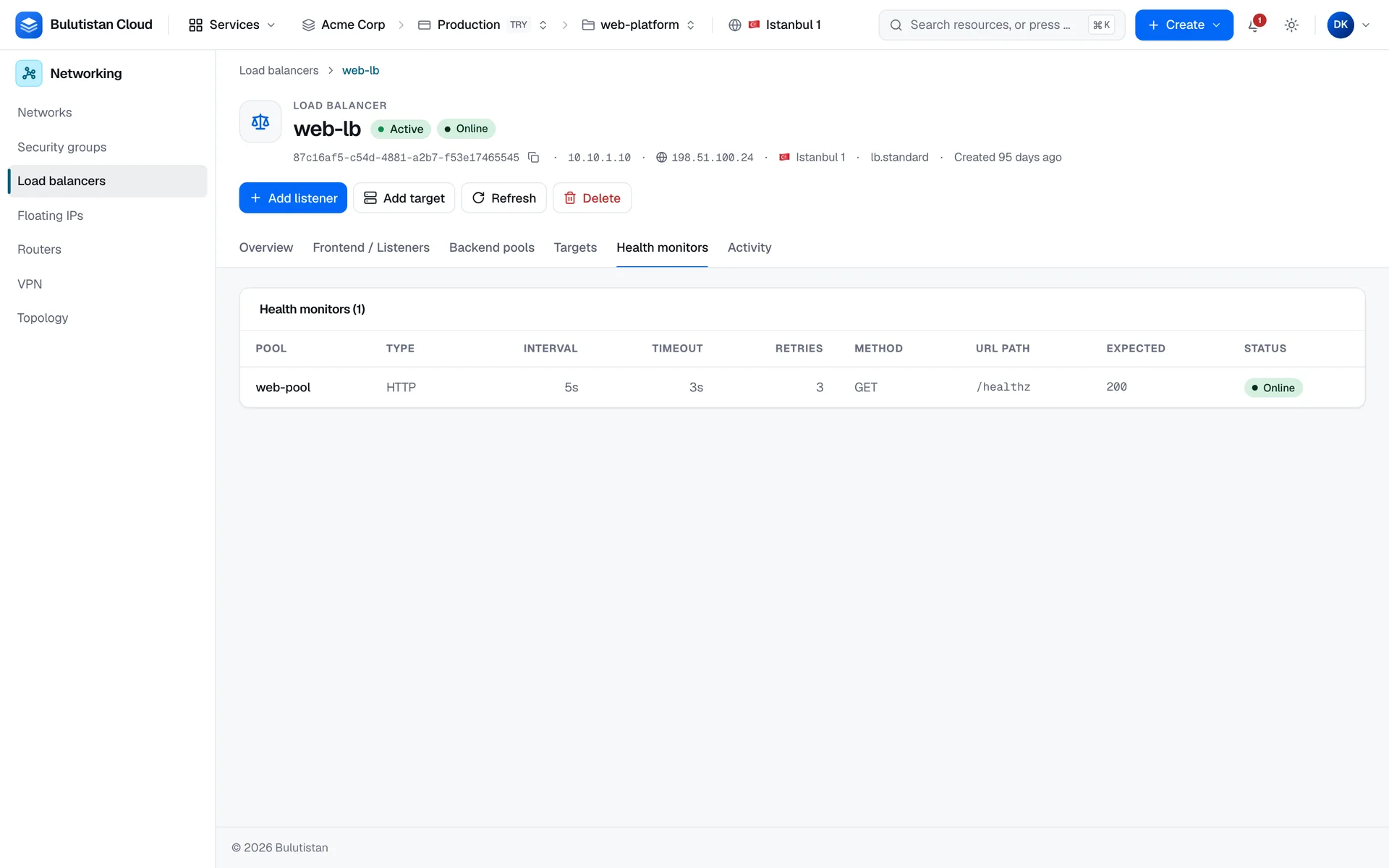
The Health monitors tab lists the health monitor of each pool with its settings and status. You can't change monitors in the console. Use the REST API:
| Task | Operation | Notes |
|---|---|---|
| Attach a monitor to a pool | POST/scopes/{scopeId}/network/load-balancers/{loadBalancerId}/pools/{poolId}/monitor | Refused if the pool already has a monitor. Send urlPath and expectedCodes only for HTTP and HTTPS monitors. |
| Change a monitor's settings | PATCH/scopes/{scopeId}/network/load-balancers/{loadBalancerId}/pools/{poolId}/monitor | Changes delay, timeout, maxRetries, urlPath, and expectedCodes. The type can't be changed. |
| Remove a monitor | DELETE/scopes/{scopeId}/network/load-balancers/{loadBalancerId}/pools/{poolId}/monitor | The pool's members are no longer checked. |
To change a monitor's type, remove it and attach a new one. For the fields, see Health monitors.
Rename a load balancer
The console doesn't rename load balancers. Use PATCH/scopes/{scopeId}/network/load-balancers/{loadBalancerId} with the new name, and send the ETag from your last read of the load balancer in an If-Match header. A load balancer's other settings, such as the VIP or the size, can't be changed at all.
Delete a load balancer
Caution
Deleting a load balancer can't be undone. Its listeners, pools, and targets are deleted with it, and traffic to its VIP stops.
On the load balancer's page, select Delete.
In the confirmation, check the number of listeners, pools, and targets that are deleted with it, and select Delete load balancer.
To delete several load balancers, select their check boxes in the list, and select Delete.
- A load balancer that's still Pending create can't be deleted. Wait until it's Active or Error.
- Delete a load balancer that's in Error. It can always be deleted.
- The status is Pending delete until the load balancing service confirms the deletion. Billing ends when the deletion completes.
- If you canceled the creation of a load balancer, delete it; its delete action is labeled Clean up.