
Check a virtual machine's internet access
Open the internet access check of an instance, read the result of each of its six steps, and fix the first step that fails.
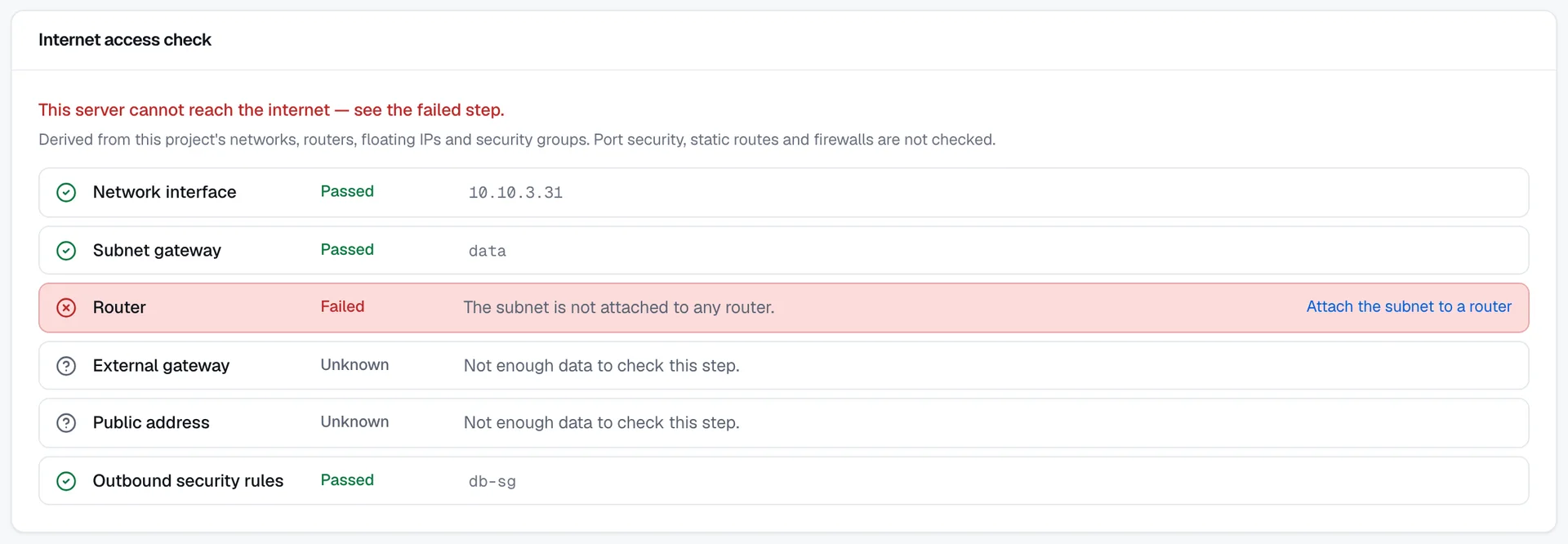
The internet access check follows the path that a packet takes from an instance to the internet. It checks six steps in order, marks each one as passed, failed, or unknown, and links every failed step to the page where you fix it. Use it when an instance can't download updates or can't be reached from the internet.
Before you begin
- To open the check, any role with Read access to Compute / Instances and to Networking is enough.
- To fix a step, you need the Owner or Contributor role on the subscription or on the project, or a custom role with Manage access to Networking. Fixes on the instance itself, such as attaching a security group, need Manage access to Compute / Instances.
Open the check
In the console, go to ComputeInstances, and open the instance.
Select the Networking tab. The Internet access check panel is below the summary tiles at the top of the tab.
Read the result line above the steps. The results are described in the table below.
If a step failed, select the link at the end of the first failed step, which the check highlights, and change the setting on the page that opens.
Open the instance's Networking tab again to see the new result.
| Result line | Meaning |
|---|---|
| This server has a path to the internet. | Every step passed. |
| This server cannot reach the internet — see the failed step. | At least one step failed. |
| Some steps could not be checked; the result is incomplete. | No step failed, but at least one step couldn't be checked. |
What each step checks
| Step | What it checks | Passes when |
|---|---|---|
| Network interface | The instance's network interfaces. | The instance has an interface. The step shows its fixed IP address. |
| Subnet gateway | The subnet that the interface's address belongs to. | The subnet has a gateway. The step shows the subnet. |
| Router | The router that has an interface on the subnet. | A router is attached to the subnet, its admin state is Up, and its status isn't Down or Error. The step shows the router. |
| External gateway | The router's external gateway. | The router has one. The step shows the external network. |
| Public address | A public path for the traffic. | A Floating IP is associated with the instance or with this interface, or the router has SNAT on. |
| Outbound security rules | The egress rules of the instance's security groups. | An attached group has an IPv4 egress rule for any protocol to 0.0.0.0/0. The step shows the group. |
A passed step can carry a note about how it passed:
- A floating IP is associated.
- No floating IP; outbound traffic uses the router's SNAT address.
- The interface is on an external network, so no router is needed.
Fix a failed step
| Step | Message | Link | What to do |
|---|---|---|---|
| Network interface | The server has no network interface. | Open networks | Attach an interface to the instance. See Attach a port to an instance. |
| Subnet gateway | The subnet has no gateway, so traffic cannot leave it. | Open the network | Give the subnet a gateway. See Edit a subnet. |
| Router | The subnet is not attached to any router. | Attach the subnet to a router | Attach the subnet to a router. See Attach a subnet. |
| Router | The router is down or disabled. | Open the router | Set the router's admin state to Up. See Rename a router or change its admin state. If the router is in Error, its page shows the reason. |
| External gateway | The router has no external gateway. | Set the router's external gateway | Select Set gateway on the router's page. See Set or clear the external gateway. |
| Public address | No floating IP and SNAT is off on the router. | Allocate a floating IP | Allocate a Floating IP and associate it with the instance. See Allocate, associate, and release Floating IPs. |
| Outbound security rules | No security group is attached, so all traffic is dropped. | Open security groups | Attach a security group to the instance. See Attach a security group to an instance. |
| Outbound security rules | No security group allows outbound traffic to the internet. | Add an outbound rule | Add an egress rule for any protocol to 0.0.0.0/0. See Add rules to a group. |
| Outbound security rules | Outbound traffic to the internet is allowed only for some protocols or ports. | Review outbound rules | Check that the egress rules allow the traffic that the instance needs. The step passes only with an egress rule for any protocol to 0.0.0.0/0. |
How the check decides
- Several interfaces. The instance reaches the internet if any of its interfaces does, so the check shows the interface with the best result.
- Interface on an external network. The Router, External gateway, and Public address steps pass directly, because the interface needs no router.
- Steps after a failure. A step that depends on a failed step shows Unknown. For example, without a router, the check can't evaluate the external gateway.
- Missing data. A step also shows Unknown with Not enough data to check this step. when a list it needs didn't load, or when a referenced resource isn't in the list. The check never guesses these steps.
What the check doesn't cover
The check is worked out in the console from the project's networks, routers, Floating IPs, and security groups. It doesn't send any traffic, and it doesn't look inside the instance. It doesn't take into account:
- port security that is turned off on a port;
- the static routes of a router;
- ingress rules, which decide whether the internet can open connections to the instance. To check them, see View the effective rules of a virtual machine.