
View the network topology
Open the live topology of your project's networks, find a resource by name, IP address, type, or network, and inspect how it connects to the internet.
The topology page draws your project's networks, subnets, routers, Floating IPs, and instances, and the connections between them. Dashed lines mark the paths that are reachable from the internet, and solid lines the private ones.
Before you begin
You need any role with Read access to Networking and to Compute / Instances.
Open the topology
In the console, go to NetworkingTopology.
Wait until the graph appears. If the project has no networks, routers, Floating IPs, or instances yet, the page shows No network resources yet and a Create network button instead.
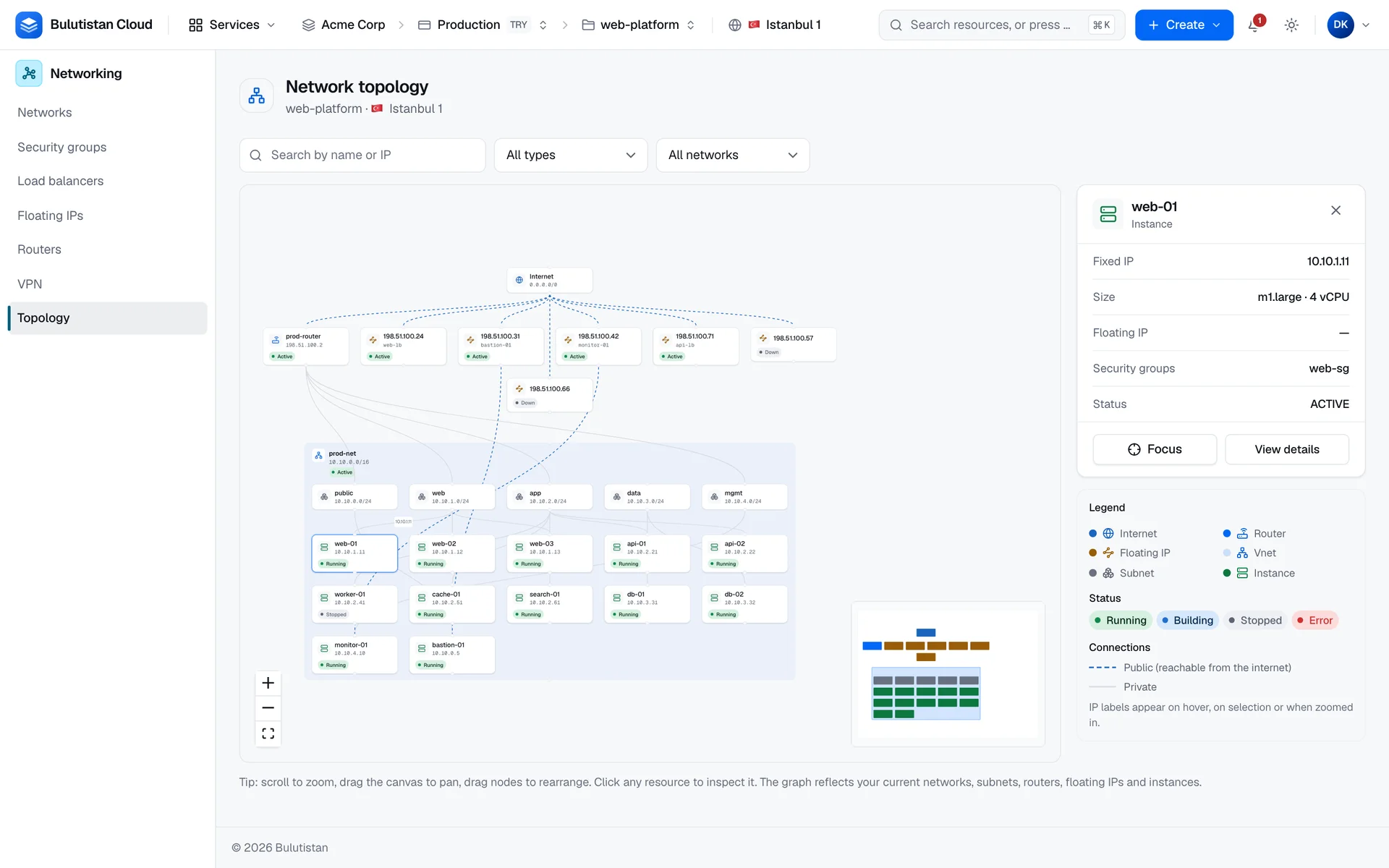
What the graph shows
| Node | What it shows | Lines |
|---|---|---|
| Internet | Appears when a router has an external gateway, an external network exists, or the project has a Floating IP. | Dashed lines to routers with an external gateway and to Floating IPs. |
| Router | The router's name and external IP address. | Solid lines to the subnets that it has interfaces on. |
| Floating IP | The address and the instance that it's associated with. | A dashed line to the associated instance. |
| Network | A container that holds the network's subnets and instances. External networks aren't drawn as containers. | |
| Subnet | The subnet's name and address block. | Solid lines to the instances that have an address in it. |
| Instance | The instance's name, fixed IP address, and status. | An instance sits in the container of its first network. An interface on another network is drawn as a line into that network. |
Public (reachable from the internet) paths are dashed, and Private paths are solid. IP labels appear on hover, on selection or when zoomed in.
The graph has no nodes for load balancers, VPN connections, or security groups, and it doesn't show ports that aren't attached to an instance. An instance's security groups appear in its details.
Find a resource
- In the search box, enter a name or an IP address. The first match is selected and centered.
- In the Node type list, select a type to show only those nodes.
- In the Network list, select a network to show only the subnets and instances inside it.
Inspect a resource
Select a node to open its details next to the graph. The details depend on the type, for example the fixed IP address, size, Floating IP, security groups, and status of an instance, or the external IP address, SNAT state, and interfaces of a router.
- Focus centers the graph on the node.
- View details opens the resource's own page. Routers, networks, Floating IPs, and instances have one.
To move around, scroll to zoom and drag the background to pan. The buttons in the corner of the graph zoom in, zoom out, and fit the whole graph in view, and the map in the other corner shows where you are.