
Create a site connection with the wizard
Build a site-to-site tunnel step by step with guided setup, reuse or create each object, and recover when a run stops part-way.
Guided setup walks through the five objects of a site-to-site tunnel one step at a time. On each step, you reuse an object that the project already has, or create a new one. Nothing is created until you confirm on the last step.
Before you begin
- You need the Owner or Contributor role, or a custom role with Manage access to Networking, on the subscription or on the project. Any role with Read access to Networking can view VPN objects.
- The project's region must offer Site-to-Site VPN. See How it works.
- The project needs a router with an external gateway, and the subnets that should reach the remote network must be attached to it. See Attach a subnet.
- Have the remote side ready: the CIDRs of the remote network, the public address of the remote VPN device, the IKE and IPsec settings it supports, and a pre-shared key of at least 8 characters.
- Use one site connection per peer gateway. See Endpoint groups.
To create everything from one name with recommended settings, use quick setup instead. It fills in the same steps, which you can still change.
Open guided setup
In the console, go to NetworkingVPN.
Select Guided setup.
The wizard has seven steps, listed next to the form. You move through them with Next and Back; Next is available when the current step is complete, and a step you've passed shows a check mark. The wizard keeps your input only while the page is open: if you leave or reload the page, it starts over.
Each of the first five steps sets one object and offers Use an existing object, or create one:
- Use existing: select an object under Existing object. This is the default when the project has an object of that type. The local and peer steps list only endpoint groups of the matching type.
- Create new: fill in the fields for a new object. This is the only choice when the project has none, and the step shows Nothing to reuse in this project yet.
Reusing an object doesn't change it. While a site connection uses an IKE or IPsec policy, the policy can't be changed, so reuse a policy only if its settings are the ones you want. See Reuse and changes.
VPN service
Select a VPN service, or create one: enter a Name and select the Router. Only routers with an external gateway are listed.
Select Next.
The step also offers Connect with recommended settings. See Connect a site with quick setup.
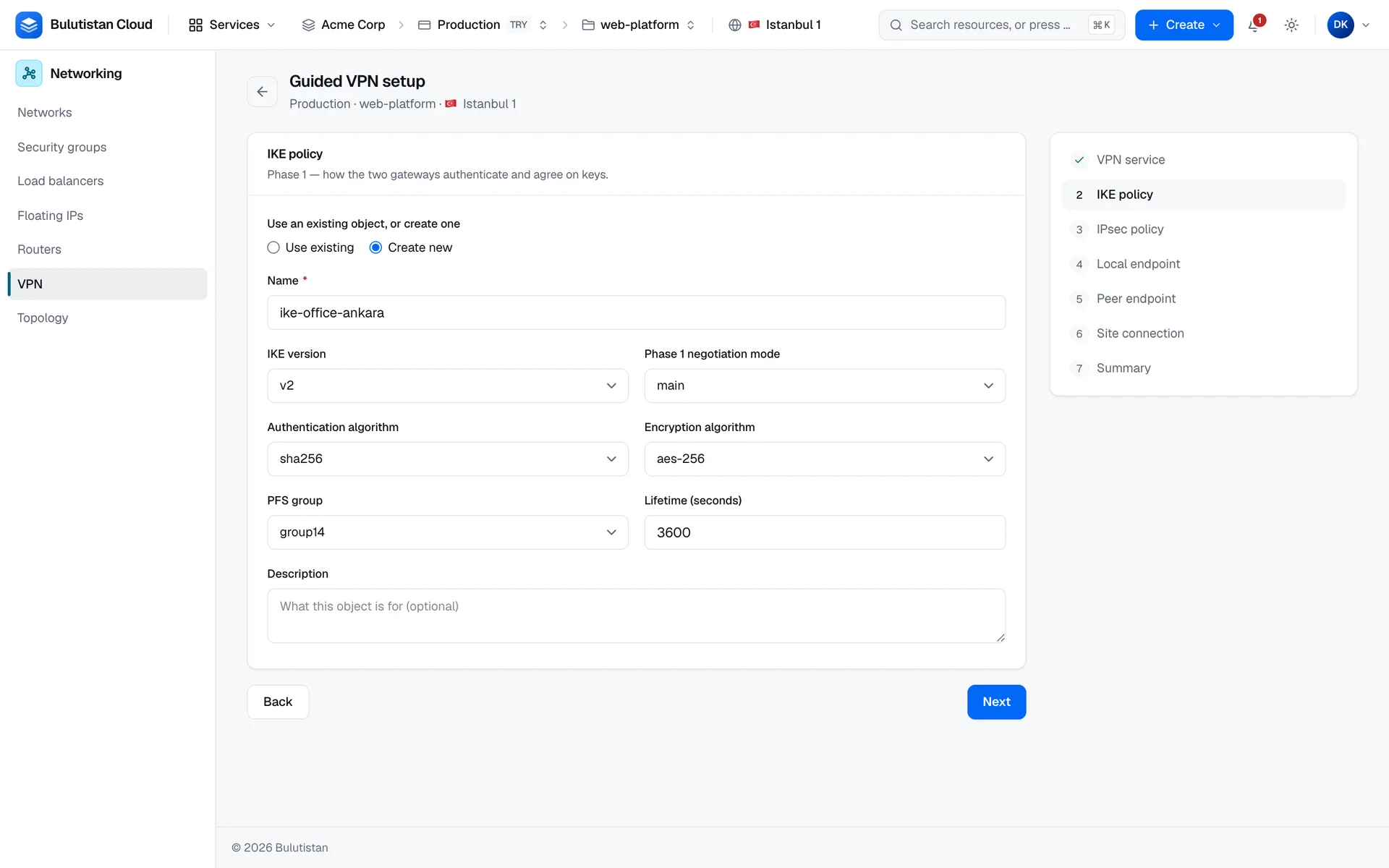
IKE policy
Select an IKE policy, or create one: enter a Name, and set IKE version, Phase 1 negotiation mode, Authentication algorithm, Encryption algorithm, PFS group, and Lifetime (seconds) to match the remote device.
Select Next.
A new policy starts with IKE v2, main mode, sha256, aes-256, group14, and 3600 seconds. The lifetime must be at least 60 seconds. For every value, see IKE policies.
IPsec policy
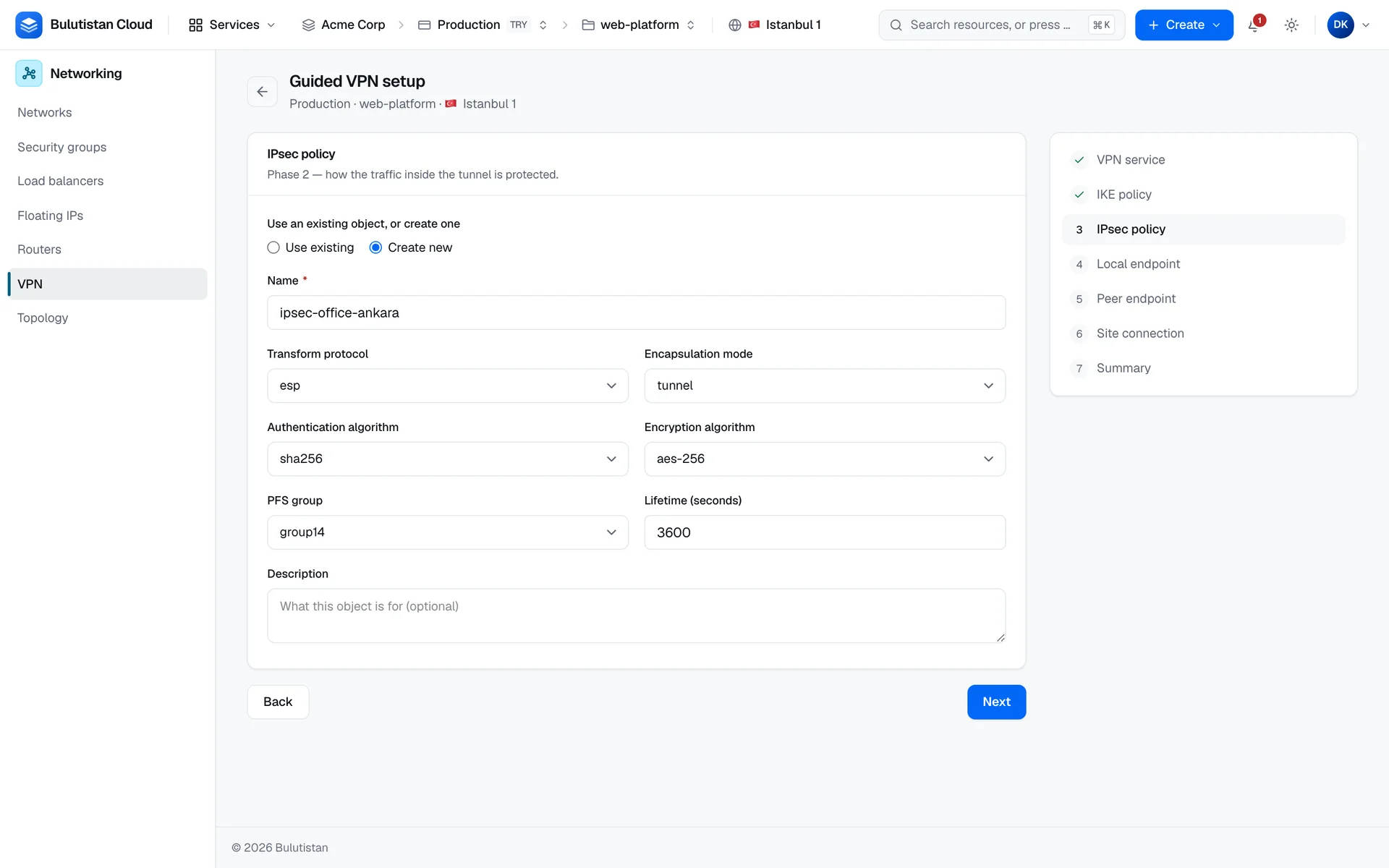
Select an IPsec policy, or create one: enter a Name, and set Transform protocol, Encapsulation mode, Authentication algorithm, Encryption algorithm, PFS group, and Lifetime (seconds) to match the remote device.
Select Next.
A new policy starts with esp, tunnel mode, sha256, aes-256, group14, and 3600 seconds. For every value, see IPsec policies.
Local endpoint
Select an endpoint group of type subnet, or create one: enter a Name, and under Local subnets, select every subnet that should reach the remote network.
Select Next.
Every subnet in the group must be attached to the router of the VPN service. The wizard doesn't check this; the platform does when you create, at the end. Put all the subnets for this peer in one group: a second site connection to the same peer doesn't carry traffic.
Peer endpoint
Select an endpoint group of type cidr, or create one: enter a Name, and enter the remote network's CIDRs in Remote CIDRs. Separate several CIDRs with commas, spaces, or semicolons.
In Peer gateway address, enter the public address of the remote VPN device.
Select Next.
A group can't list the same CIDR twice. If you enter 172.16.0.0/16 twice, the wizard shows: 172.16.0.0/16 is listed twice — each subnet or CIDR can appear in a group only once.
There's no field for the IKE identities: they're always the two gateway addresses. See Site connections.
Site connection
Enter a Name for the connection.
Enter the Pre-shared key: at least 8 characters, the same as on the remote device.
Set Initiator, Dead peer detection action, DPD interval (seconds), DPD timeout (seconds), and MTU.
Select Next.
The fields start with bi-directional, hold, 30 seconds, and 120 seconds, and the MTU starts at the smallest MTU of the project's networks. For every field, see Site connections.
The wizard checks that the key has at least 8 characters, that the interval is at least 1 and the timeout at least 2, and that the MTU is at least 68. The platform checks the rest when you create: the timeout must be greater than the interval, and the MTU can't exceed the deployment's tenant network MTU.
Summary
Check the list. Each object shows its name and Reused or Will be created. The site connection always shows Will be created.
Select Create VPN connection.
The wizard creates the new objects one after another, in the order of the steps, and waits up to a time limit for each one to finish before the next. Reused objects aren't touched. Then it creates the site connection. If an object still isn't ready by then, the platform refuses the connection, and the run stops; see If the run stops part-way.
Create the objects one at a time
Each tab under NetworkingVPN has its own create button: New VPN service, New IKE policy, New IPsec policy, New endpoint group, and New site connection. They open full-page forms with the same fields as the wizard. A new endpoint group needs an Endpoint group type: subnet (local end) or cidr (remote end).
Create the VPN service, the IKE policy, the IPsec policy, a subnet endpoint group, and a CIDR endpoint group, or check that the ones you want to reuse exist.
On the Site connections tab, select New site connection.
Under Details, enter a Name. Under References, select the five objects.
Fill in the Peer and Security sections as in the wizard.
Select Create.
If one of the five lists is empty, the form says so: Some of the objects this connection needs do not exist yet. Guided setup creates them as it goes. The referenced objects must have finished creating; otherwise the platform refuses the connection and asks you to wait until the object is ready.
If a field needs attention, the form marks it, moves to it, and sends nothing. After a create, the console opens the new site connection's page, or for another object, its tab with the object's details.
Result
When the site connection is created, its page opens and shows the tunnel status that the provider reported. The new objects appear on their tabs under NetworkingVPN. To configure the remote device, see Configure the peer device.
If the run stops part-way
If the platform refuses an object or its creation fails, the run stops. The wizard shows The run stopped part-way and the reason under The request was refused.
If the run had created objects before it stopped, the wizard lists each one by type, name, and ID, and offers two choices:
| Choice | What it does | Use it when |
|---|---|---|
| Keep them and retry | Runs again from the step that failed, with the same values. The objects in the list are reused, not created again. | The cause was temporary, for example an object that wasn't ready yet. |
| Delete what I created | Deletes the listed objects in reverse order, and returns to the Summary step with your values. If a deletion fails, the objects that are left stay in the list with the reason. | The cause is a value you entered, such as the MTU or the dead peer detection timeout. Go back to its step, fix it, and create again. |
A retry with the same values fails again if a value caused the failure. If nothing was created, the wizard shows Nothing was created before the failure, so there is nothing to clean up. Select Retry, or Back to the summary to change values first.
- An object whose own creation failed isn't in the list. It stays on its tab with the status Error. Delete it before you retry: a retry creates it again under the same name, and names must be unique.
- The list exists only while the page is open. If you leave the wizard, the objects stay on their tabs. You can reuse them in a new run or in New site connection, or delete them. See Delete a VPN service, policy, or endpoint group.