
What is Cost Management?
Learn how Cost Management shows what your usage costs, alerts you before spend passes a limit, flags unusual days, and discounts steady compute.
Cost Management shows what your cloud usage costs and where the money goes. It alerts you before spend passes a limit, flags days when a service spent far more than usual, and lowers the rate you pay for compute that runs all the time. You find it in the console under Billing.
Key features
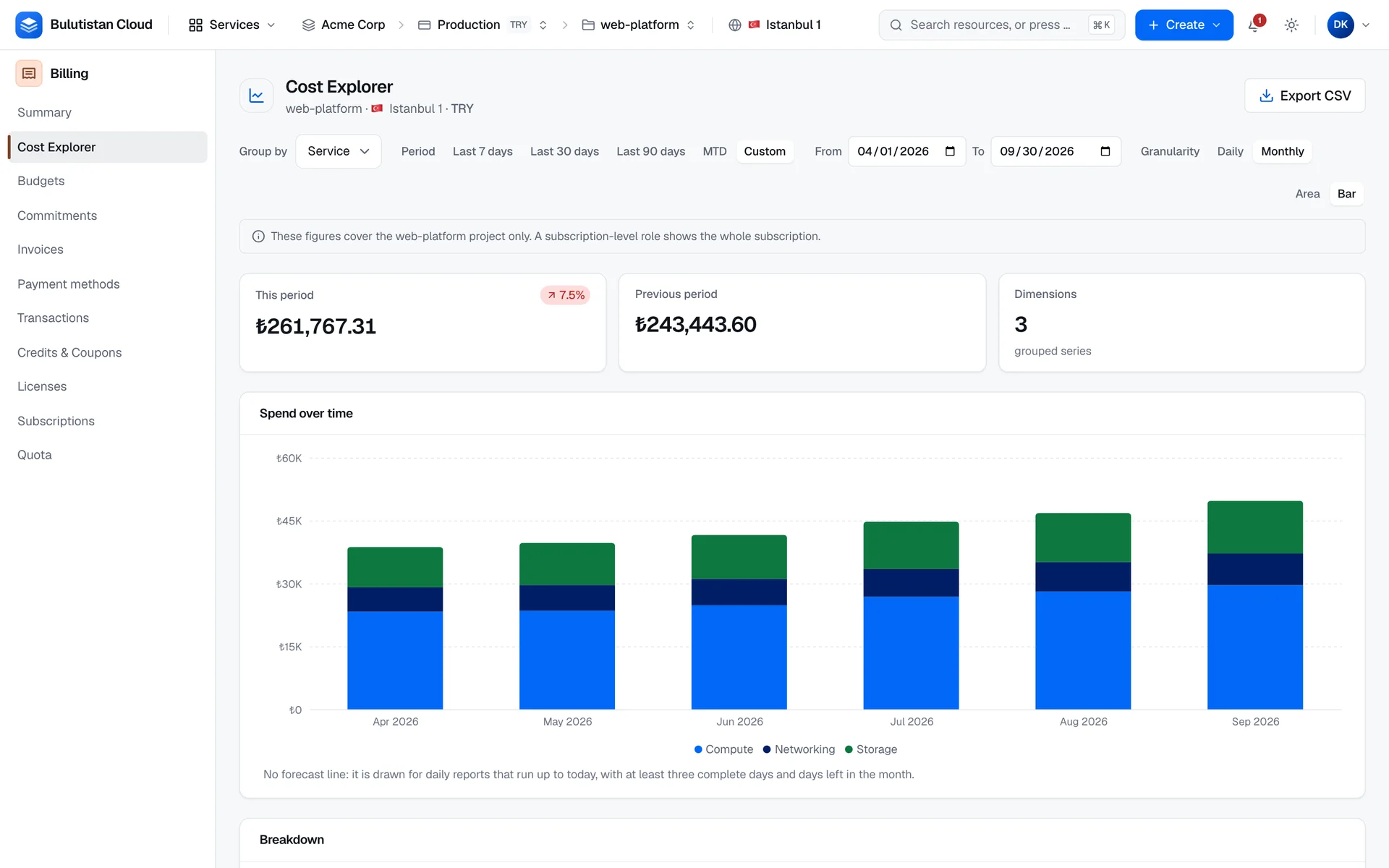
- Cost Explorer. Chart spend by service, project, region, or tag, day by day or month by month, compare it with the previous period, and drill down to single resources. See Analyze spend with Cost Explorer.
- Budgets. Set a monthly, quarterly, or annual limit for a project or a subscription, with alerts at the percentages you choose and when the forecast reaches the limit. See Create budgets and threshold alerts.
- Anomaly warnings. Cost Explorer and the dashboard flag the days when a service spent far more than its recent median. See Detect cost anomalies.
- Savings Plans and Reserved Instances. Commit to an hourly amount of compute spend for one or three years, and pay a discounted rate for the usage it covers. See Savings Plans and Reserved Instances and Buy a Savings Plan or Reserved Instance.
- CSV export. Download a Cost Explorer report, one row per day or month, for your own analysis. See Export a report.
How it works
The platform meters each resource's usage by the hour and prices each hour at the rate that applied then. That price already includes the discount of any Savings Plan or Reserved Instance, and any negotiated rate, that covers the usage. Cost Management computes its figures from these priced records every time you open a page, so they include the usage recorded so far in the current hour. Taxes and credits aren't included: they're applied on the invoice. See Invoices and payments.
Costs are collected per subscription. Cost Explorer shows amounts in the subscription's currency. If your role covers only one project, Cost Explorer and the budget list show only that project, and Cost Explorer says so. Budgets are an exception for currency: the platform evaluates them in US dollars. See Budgets are evaluated in US dollars.
A budget's alerts are evaluated by the same system as Monitoring & Alerts, and delivered by email or webhook. See Send alerts by email and webhook.
Use cases
- Find the biggest cost. Group by service, then expand the top row to see which resources drive it.
- Charge back to teams. Tag instances and volumes with a key such as
team, and group spend by that tag. - Stay under a monthly limit. Create a monthly budget for a project with alerts at 50 %, 80 %, and 100 %, plus the forecast alert at 100 %.
- Catch a runaway workload. Watch the anomaly warning in Cost Explorer for a service that spent several times its usual daily amount.
- Lower the cost of always-on compute. Cover the steady part of your instance usage with a Savings Plan.
Billing
Cost Explorer and anomaly warnings have no billing dimension. A Savings Plan or Reserved Instance is billed for its hourly amount over its whole term, whether your usage uses it or not. See How a commitment is billed. For how usage becomes charges on your invoice, see How billing works. For prices, see Pricing.
Limits
- Cost Explorer offers the last 7, 30, or 90 days, the month to date, or a custom range of days, in UTC.
- A budget resets monthly, quarterly, or annually, on calendar boundaries in UTC, and has one alert recipient.
- Budget thresholds are whole percentages from 1 to 500.
- Anomaly warnings judge the days of the last 30 days that have 14 complete days before them.
- Commitments cover compute instances only, for a term of one or three years.
Related services
- Monitoring & Alerts: the notification channels and the feed that budget alerts use.
- Virtual Machines: the tags that Cost Explorer groups by, and the compute that commitments cover.
- Billing: invoices, payments, credits, and currencies.
Next steps
Analyze spend with Cost Explorer
Group, compare, drill down, and export spend.
Create budgets and threshold alerts
Limits, thresholds, forecast alerts, and statuses.
Detect cost anomalies
How unusual days are flagged.
Savings Plans and Reserved Instances
Commit to steady compute spend for a lower rate.
Buy a Savings Plan or Reserved Instance
Configure, buy, and renew a commitment.