
What is Resource Explorer?
Learn how Resource Explorer lists a project's instances, volumes, networks, security groups, and Floating IPs in one searchable table with costs.
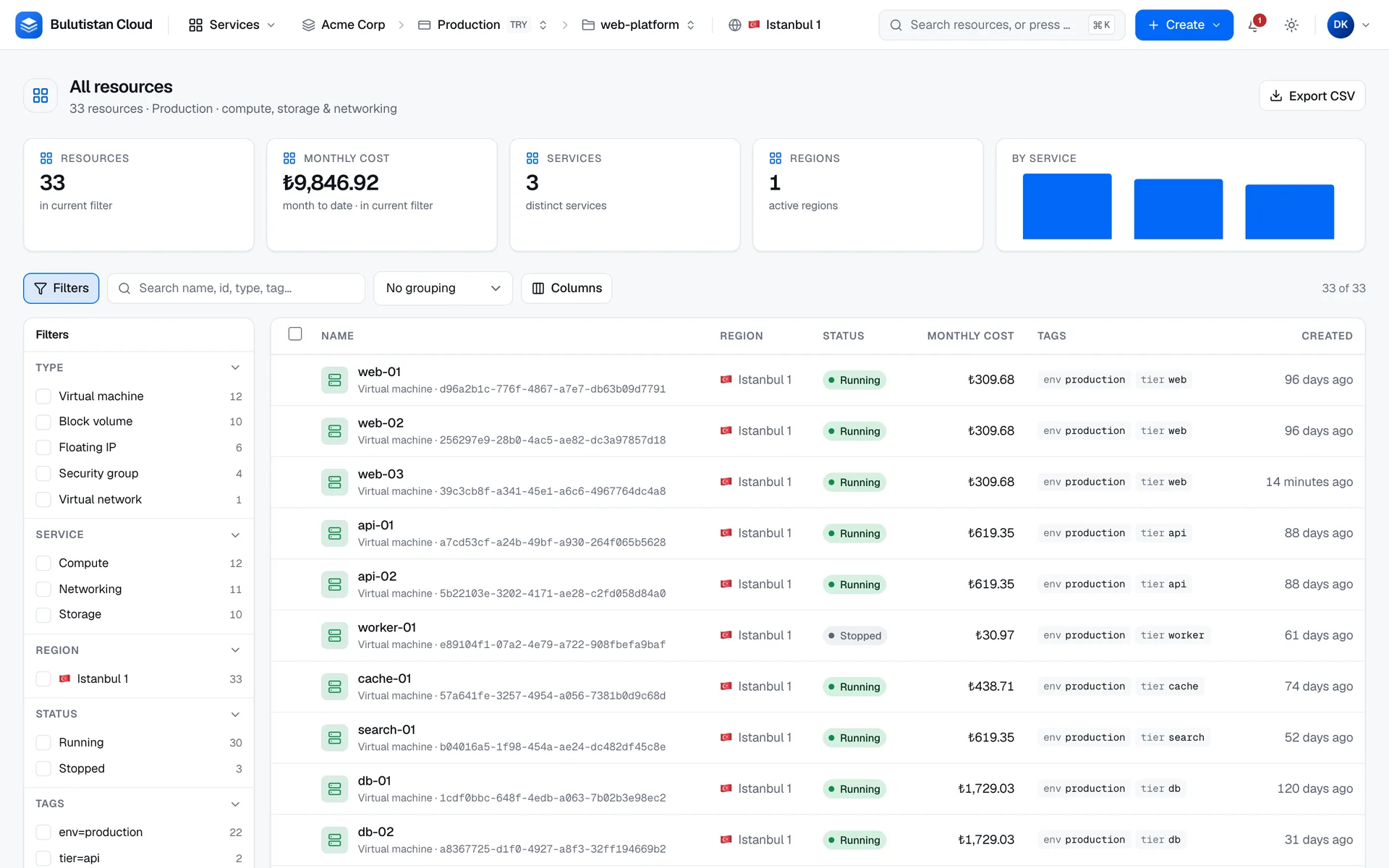
Resource Explorer lists the resources of a project in one table: its virtual machines, block volumes, virtual networks, security groups, and Floating IPs. Each row shows the resource's status, tags, creation time, and what it has cost this month. You find it in the console under All resources.
Key features
- One list across services. Compute, storage, and networking resources side by side, with their totals and their count per service. See Search, group, and export resources.
- Search and filters. Search by name, ID, type, or tag, and filter by type, service, region, status, and tag. See Search and filter.
- Grouping and columns. Group the table by type, service, region, or project, and show only the columns you need.
- Bulk actions. Set a tag on several virtual machines and volumes at once, or delete several resources. See Act on several resources.
- Month-to-date cost. See what each resource has cost since the 1st of the month, and the total of the filtered rows.
- CSV export. Download the filtered rows. See Export the list.
How it works
Resource Explorer reads the same lists as the pages of each service, every time you open it, and combines them into one table. A resource that you create or delete elsewhere appears in, or disappears from, the table the next time the lists load.
Each service has its own statuses. The table maps them onto common ones, such as Running and Stopped, so you can filter across services. See What the statuses mean.
The cost comes from billing: a resource's spend since the 1st of the current month, for the resources that are being billed. Networks and security groups have no cost of their own.
Resource Explorer covers five resource types. Routers, load balancers, VPN connections, snapshots, backup plans, images, key pairs, and buckets aren't listed. The dashboard also counts routers, load balancers, VPN connections, snapshots, and backup plans, so it shows a higher number of resources.
Use cases
- Find a resource fast. Search for part of a name or an ID across every service of the project.
- Check your tagging. Filter by a tag such as
env=productionto see what carries it, and set it on the virtual machines and volumes that don't. - Find what costs the most. Show the cost column, and compare the month-to-date cost of your instances and volumes.
- Clean up. Filter by status or tag, select what you no longer need, and delete it in one go.
Billing
Resource Explorer has no billing dimension.
Limits
- Five resource types: virtual machines, block volumes, virtual networks, security groups, and Floating IPs.
- The resources of the selected project only.
- Setting tags in bulk works for virtual machines and volumes only.
- The cost covers the current month to date.
Related services
- Virtual Machines: the instances in the list, and how to tag them.
- Cost Management: spend over time, by service, project, region, or tag.
- Activity Log: the operations that the platform runs for requests in the console and the REST API.