
Analyze spend with Cost Explorer
Group spend by service, project, region, or tag, compare it with the previous period, drill down to resources, and export the report as CSV.
Use Cost Explorer to see how your spend develops over time, what drives it, and how it compares with the period before.
Before you begin
- You need any role with Read access to Billing & Cost, such as Owner, Contributor, Reader, or Billing Operator. With the role on the subscription, Cost Explorer shows the whole subscription. With the role on one project only, it shows that project, and says so: These figures cover the web-platform project only. A subscription-level role shows the whole subscription.
- Cost Explorer shows usage that has been metered. A new resource appears once its first usage is recorded.
Open Cost Explorer
In the console, go to BillingCost Explorer.
The report opens grouped by Service, over the Last 30 days, with Daily buckets. The header shows the currency of the amounts: your subscription's currency.
Choose what to show
In Group by, select Service, Project, Region, or Tag. For a tag, also select the Tag key.
In Period, select a range. For Custom, pick the From and To days.
In Granularity, select Daily or Monthly.
To switch the chart, select Area or Bar.
The report reloads after each change. All days and months are in UTC.
| Period | Covers |
|---|---|
| Last 7 days, Last 30 days, Last 90 days | The last 7, 30, or 90 days up to now. |
| MTD | From the 1st of the current month up to now. |
| Custom | From the start of the From day to the end of the To day, both included. |
| Group by | Each series is |
|---|---|
| Service | A service, such as compute, storage, or networking. |
| Project | A project of the subscription, by name. Usage without a project is grouped as unassigned. |
| Region | A region code, such as ist-1. |
| Tag | A value of the chosen tag key, shown as key=value. Usage of resources without that key is grouped as Untagged. |
Tags. The Tag key list offers the keys found on the usage of the period and of the previous period. A resource's tags are recorded with each hour of its usage, so a tag that you add or change applies to usage from then on, not to earlier usage. See Organize resources with tags.
Read the report
At the top, three tiles show This period, with its change against the previous period, Previous period, and the number of Dimensions.
- Previous period. The span of the same length right before the selected one. For MTD, that's the same number of hours just before the 1st, not the same days of the previous month.
- Hourly records. Each hour of usage counts in the day or month in which the hour starts.
- Amounts. Usage is priced at the rate that applied in each hour, including the discount of a Savings Plan or Reserved Instance that covers it. Taxes and credits aren't included.
Spend over time stacks the series of each bucket.
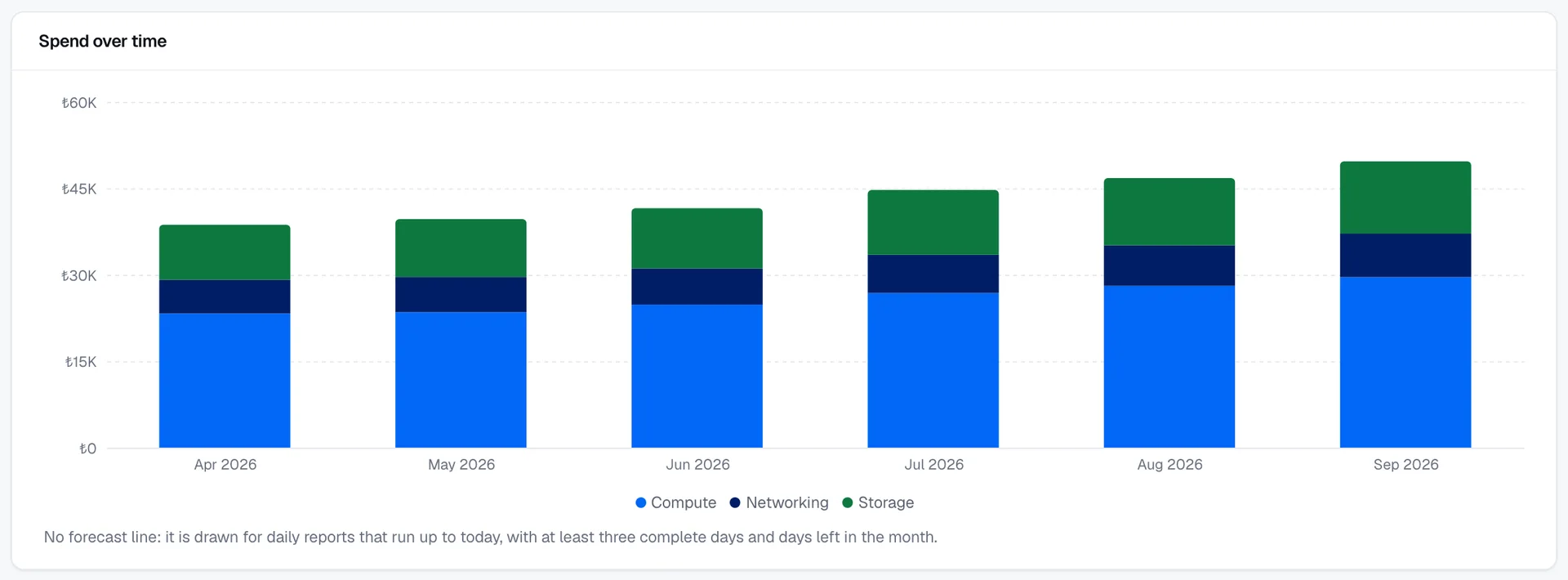
Forecast line. With Daily buckets, the chart can show a dashed Forecast (linear trend) line to the end of the current month. It's a straight line fitted to the totals of up to the last 30 complete days, and your browser calculates it, not the billing system. The line is drawn only when the period runs up to today, has at least three complete days, and today isn't the last day of the month. Today's bucket is only partly metered, so it isn't used for the fit.
Breakdown lists each series with its spend in This period and Previous, the Change, and a Trend line.
- To sort the rows the other way, select the This period column header.
- To see the resources behind a series, select its name. Each resource shows its name, its type, and its ID, with its own spend in both periods.
- A change from zero shows as 100 %.
If an unusual day stands out, a warning appears above the report. See Detect cost anomalies.
Export a report
Set up the report that you want to export.
Select Export CSV.
The browser downloads a CSV file of the current grouping, period, granularity, and tag key. It's named after the grouping, the period, and the granularity, for example cost-report-service-30d-daily.csv. The file has one row per day or month, with these columns:
| Column | Content |
|---|---|
date | The bucket's start date, in ISO 8601 format. |
bucket | The bucket's label, for example Sep 14 or Sep 2026. |
| One column per series | The series' spend in the bucket, named after the series. |
total | The sum of the bucket's series. |
currency | The currency code of the amounts. |
Amounts are in the currency's main unit with four decimal places, for example 1.2345. The file doesn't contain the resource drill-down.
To read the same report through the REST API, see GET/scopes/{scopeId}/billing/cost-reports.
Result
The report shows the spend of your selection, grouped and bucketed as you chose. To get alerted when spend approaches a limit, create a budget. See Create budgets and threshold alerts.
Troubleshooting
| Message | Cause | Resolution |
|---|---|---|
| No cost data for this selection | No usage was metered in this scope and period. | Select a longer period. |
| No tagged usage in this period | No resource with usage in the period carries a tag. | Tag your resources. Usage is grouped by tag from the moment the tag is set. |
| Pick a start date before the end date to apply a custom range. | The custom range is incomplete, or its start is after its end. | Pick both days, with the start first. |
| No access to this billing data | Your role has no Read access to Billing & Cost. | Ask an owner of the subscription for a role with Read access to Billing & Cost. |
| Couldn’t load cost data | The billing service didn't return a report. | Try again shortly. |