
Create alert rules
Create rules that alert you when tagged virtual machines enter the ERROR state or cross a metric threshold, and edit, silence, or delete them.
An alert rule watches every instance of a project that carries a set of tags. At each evaluation, it checks a condition for each of these instances, and it notifies its channels when an instance's alert fires and when it resolves.
Before you begin
- To create, change, silence, or delete rules, you need the Owner or Contributor role on the project or its subscription, or a custom role with Manage access to Observability. With Read access, as with the Reader role, you can view rules but not change them.
- Tag the instances that you want to watch. See Organize resources with tags.
- For a metric rule, turn on monitoring on those instances. See View virtual machine metrics.
- To be notified, add a notification channel to the project first. A rule without channels still tracks its state, but it notifies no one. See Send alerts by email and webhook.
Create a rule
In the console, go to ObservabilityAlerts, and select Create alert rule.
Under Basics, enter a Rule name. Keep Enabled turned on.
Under Signal, select Instance in ERROR state or VM metric. See Choose a signal.
In Tag selector, enter a tag key and a value. To add another pair, select Add tag. See Choose instances with a tag selector.
For a metric rule, select the Metric.
Under Condition, set the condition. See Set the condition.
Under Notification channels, select the channels to notify.
Select Create rule.
While you type the selector, the form shows how many instances match right now, and for a metric rule, how many of them have monitoring off. Below the condition, it repeats the condition as a sentence.
| Field | Rules |
|---|---|
| Rule name | 1–255 characters. The name appears in the list and in every notification. |
| Signal | Can't be changed after the rule is created. |
| Tag selector | 1–10 key–value pairs. A key is up to 64 characters and a value up to 255 characters, and neither can be empty. |
| Threshold | A number of 0 or more, in the metric's unit. Metric rules only. The default is 80. |
| Fire after | 0–86,400 seconds. The default is 0. |
| Evaluation window | 60–86,400 seconds. The default is 300. |
| Notification channels | Up to 10 of the project's channels. Channels that a budget manages aren't offered. |
Choose a signal
Instance in ERROR state
Instance in ERROR state fires while an instance is in the Error status, and resolves when it leaves it. An instance whose cloud status the platform doesn't recognize also shows Error in the console, but it doesn't fire the rule. The condition is fixed: you only set Fire after and Evaluation window. Each evaluation reads the instance's current status, so the window doesn't change the result; use Fire after to wait before the rule fires.
VM metric
VM metric compares a metric of each instance with a threshold. You can alert on these metrics:
| Metric | Unit |
|---|---|
| CPU utilization | % |
| Memory utilization | % |
| Disk read throughput, Disk write throughput | MB/s |
| Disk read IOPS, Disk write IOPS | IOPS |
| Network in throughput, Network out throughput | Mbps |
| Network packets in, Network packets out | packets per second |
| Network errors in, Network errors out | per second |
| Network drops in, Network drops out | per second |
Disk latency, page cache, and swap are charted on an instance's Monitoring tab, but you can't alert on them. The metrics are the ones on the charts; see Read the charts.
A metric rule skips the matched instances whose monitoring is off: it doesn't evaluate or bill them. The rule's page shows how many it skips.
Choose instances with a tag selector
The rule watches every instance of the project that carries all the key–value pairs of the selector. For example, the selector env: prod and tier: web matches an instance tagged with both, but not one tagged only env: prod.
- Exact match. Keys and values match exactly, including case. There are no wildcards.
- Resolved at every evaluation. An instance that gets the tags later joins the rule at the next evaluation. An instance that loses a tag, or is deleted, leaves it, and an alert that it still holds open resolves once.
- No match is allowed. A rule whose selector matches nothing stays enabled, shows No data, and starts watching as soon as an instance carries the tags.
When you create a rule from a chart, the form offers that instance's tags as pairs that you can add with one click.
Set the condition
For a metric rule, set these fields:
- Aggregation over the window: average (the default) or maximum of the metric over the window. Average smooths short spikes; maximum reacts to any peak. The window is read as at most 60 samples, one per minute up to an hour and sparser beyond, so over long windows the maximum can miss shorter peaks.
- Comparison:
>,≥,<, or≤. The default is>. - Threshold: the value to compare with, in the metric's unit.
For both signals, set these fields:
- Evaluation window: the period that the metric is aggregated over. Rates such as CPU, disk, and network figures are computed over at least the last 120 seconds, so a 60-second window reflects the last two minutes.
- Fire after: how long the condition must hold before the rule fires. With 0, it fires at the next evaluation that meets the condition.
For disks and network interfaces, the rule compares the worst device: the highest value for > and ≥, and the lowest for < and ≤. So one rule covers every disk or interface of an instance.
How rules are evaluated
The platform evaluates every enabled rule on a regular cycle, separately for each matched instance. How often the cycle runs is set by the platform operator. Each instance has its own state and its own Fire after clock.
| State | For one instance | For the rule |
|---|---|---|
| OK | The condition doesn't hold. | At least one instance is OK, and none is firing. |
| Firing | The condition has held for the Fire after duration. | At least one instance is firing. |
| No data | The instance couldn't be measured in this evaluation. | No instance has data, or no instance matches. |
| Disabled | Shown for every instance while the rule is silenced. | The rule is silenced. It isn't evaluated, and its last state isn't shown. |
A new rule shows No data until its first evaluation.
For a metric rule, an instance has no data when it isn't running on the cloud yet, when the window holds no samples, or when the metrics store can't be reached. A missing reading restarts the instance's Fire after clock.
Notifications. The rule notifies its channels when:
- an instance's alert fires; an instance that goes from firing to no data and back to firing isn't notified twice;
- an instance's alert resolves, including through a period of no data;
- an open alert closes because monitoring was switched off for the instance, the instance left the selector, or the rule was silenced or deleted.
No data alone notifies no one. Every fire and resolve also appears in the rule's State history, and in the notification feed of the users who can read the project's alerts.
Manage a rule
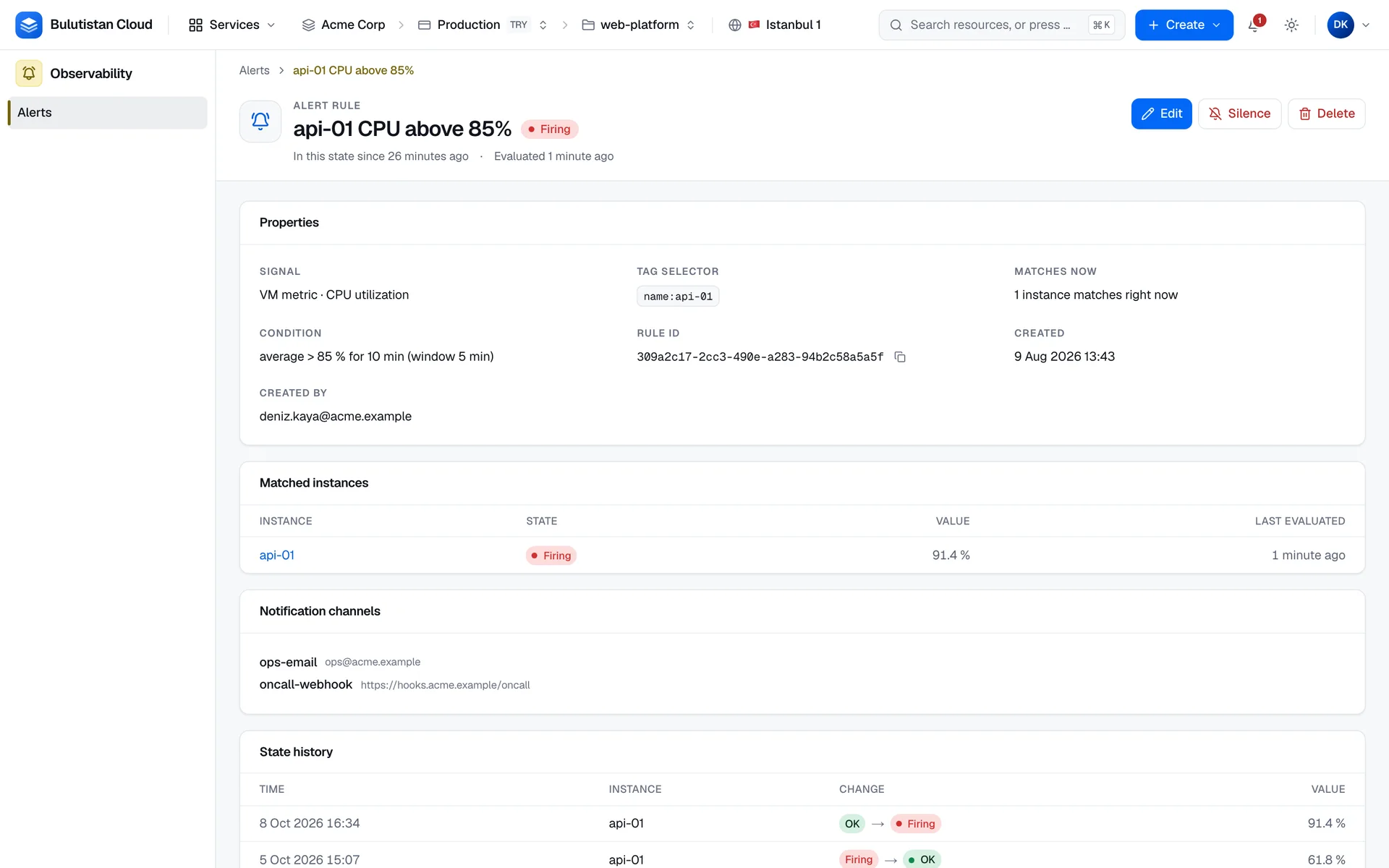
To open a rule, select it in ObservabilityAlerts. The list shows each rule's state, selector, condition, number of channels, and when it was last evaluated. The rule's page shows its Properties, the Matched instances with each instance's state and last value, its Notification channels, and its State history, newest first.
Edit a rule
On the rule's page, select Edit.
Change the fields, and select Save changes.
- A change to the selector or the condition makes the rule due at once and restarts each instance's clock. An instance that's firing and still breaches the new condition stays firing, without a new notification.
- A change to the name or the channels doesn't affect the evaluation.
- Widening the selector counts against the project's rule limit, like a new rule. See Limits.
Silence or resume a rule
On the rule's page, select Silence, and then Silence rule. Silencing a rule:
- resolves every alert that it holds open, and notifies the channels once for each firing instance;
- stops its evaluation, its notifications, and its billing.
A silence has no end date: the rule stays silent until someone selects Resume. Resuming starts the evaluation again, with every instance's clock at zero. Turning off Enabled in the rule's form does the same as silencing it.
Delete a rule
On the rule's page, select Delete, and confirm. The rule's open alerts resolve first, with a notification, and then its evaluation and billing stop. You can't restore a deleted rule.
Result
After you create a rule, the console opens its page. The rule shows No data until its first evaluation, in the next evaluation cycle. Then each matched instance shows its own state and last value. The page refreshes by itself while the rule is enabled.
Limits
| Resource | Limit | Adjustable? | Notes |
|---|---|---|---|
| Evaluation interval | Set by the platform operator | Yes, by the operator | |
| Rule name | 1–255 characters | No | |
| Tag pairs per selector | 1–10 | No | Every pair must match. |
| Selector tag key | 1–64 characters | No | |
| Selector tag value | 1–255 characters | No | |
| Matched instances per rule | 200 | No | The rule evaluates the first 200 matched instances, in instance ID order. |
| Channels per rule | 10 | No | |
| Evaluation window | 60–86,400 seconds | No | |
| Fire after | 0–86,400 seconds | No | |
| Alert rules per project | Set by the platform operator | Yes, by the operator | Counted per matched instance: a rule that matches 20 instances uses 20. The project uses the number of matched instances across its rules, or its number of rules if that's higher. Silenced rules count. Matched instances with monitoring off don't count for a metric rule. Rules that budgets manage don't count. |
Instance tags accept longer keys and values than a selector: a tag key can have up to 128 characters, and a value up to 256 characters or none. A selector can only match a tag whose key has at most 64 characters and whose value has 1–255 characters.
Troubleshooting
| Message | Cause | Resolution |
|---|---|---|
| No instance matches | No instance of the project carries every pair, with exactly these keys and values. | Check the instances' tags, including upper and lower case. |
| Not verified — receives nothing yet | The email channel's address hasn't been confirmed yet. | Ask the recipient to confirm, or resend the confirmation. See Verify an email address. |
| Enter at least one tag key and value. | The selector has no complete pair. | Enter a key and a value. |
| A tag key is at most 64 and a tag value at most 255 characters. | A selector key or value is too long. | Shorten it. |
| Enter a threshold of 0 or more. | The threshold is negative or empty. | Enter 0 or more. |
| The alert rule could not be saved. | The platform refused the rule. If Show details shows the Error code QUOTA_EXCEEDED, the project has reached its alert rule limit. | Narrow the selectors of other rules or delete rules, or ask the platform operator to raise the limit. |
A metric rule shows No data when every instance that it matches has monitoring off. Turn on monitoring for them. See View virtual machine metrics.
Related
- Send alerts by email and webhook
- View virtual machine metrics
- Organize resources with tags
- Monitoring & Alerts FAQ
- To manage alert rules through the REST API, see POST
/scopes/{scopeId}/observability/alert-rules.