
View virtual machine metrics
Turn on monitoring for a virtual machine, and read its CPU, memory, disk, and network charts over the last hour, day, or week.
Use the Monitoring tab of an instance to turn monitoring on or off and to chart the instance's metrics.
Before you begin
- To view metrics, you need any role with Read access to Compute / Instances on the project or its subscription, such as Reader. To turn monitoring on or off, you need the Owner or Contributor role, or a custom role with Manage access to Compute / Instances.
- Monitoring is billed per hour while it's on, when it has a price in your region. See Billing.
Turn on monitoring
In the console, go to ComputeInstances, and select the instance.
Select the Monitoring tab.
Select Turn on monitoring, or turn on Monitoring at the top of the tab.
If monitoring has a price in your region, the console asks you to confirm: in Turn on monitoring?, select Turn on monitoring.
The text under the toggle tells you whether monitoring has a price in your region. You can also turn on monitoring when you create the instance, with Enable monitoring on the Advanced step. See Create a virtual machine.
To turn monitoring off, turn off Monitoring. While monitoring is off, the instance's metrics aren't shown or billed, and metric alert rules skip the instance. A metric alert that's firing for the instance resolves, and its channels are notified once.
Read the charts
On the Monitoring tab, select a time range: 1h, 24h, or 7d. The default is the last hour.
Hover over a chart to read the value of each line at a point in time.
The tab refreshes the charts every minute while it's open.
| Chart | What it shows | Unit |
|---|---|---|
| CPU utilization | The time the instance's vCPUs ran, as a share of its vCPU count. | % |
| Memory utilization | The memory in use, as a share of the memory available to the guest. | % |
| Disk throughput | Data read and written, per disk. | MB/s |
| Disk IOPS | Read and write operations, per disk. | IOPS |
| Disk latency | Average time per read and per write operation, per disk. | ms |
| Network throughput | Traffic received and sent, per network interface. | Mbps |
| Network packets | Packets received and sent, per network interface. | packets per second |
| Network errors & drops | Receive and transmit errors and drops, per network interface. | per second |
| Page cache | Memory that the guest uses as disk cache. | MB |
| Swap in / out | Memory swapped in and out by the guest. | bytes per second |
- Disks and interfaces. Each disk is its own line, labeled with its device name and, for a Block Storage volume, the volume ID. Each network interface is labeled with its MAC address.
- Resolution. A range of 1 hour has one point per minute, 24 hours one point per 5 minutes, and 7 days one point per 30 minutes. Rates, such as CPU, disk, and network figures, are averaged over at least the last 2 minutes at each point.
- Gaps. The charts show no data for the times when monitoring was off. After you turn monitoring on, the charts start from that moment.
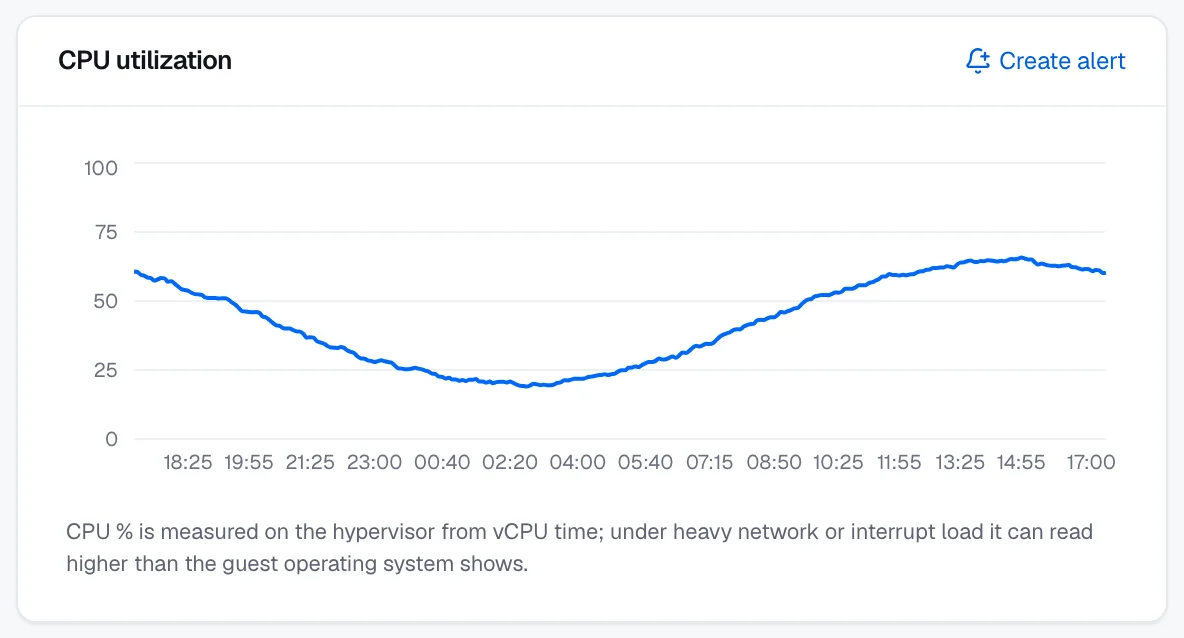
How CPU is measured
CPU % is measured on the hypervisor from vCPU time; under heavy network or interrupt load it can read higher than the guest operating system shows.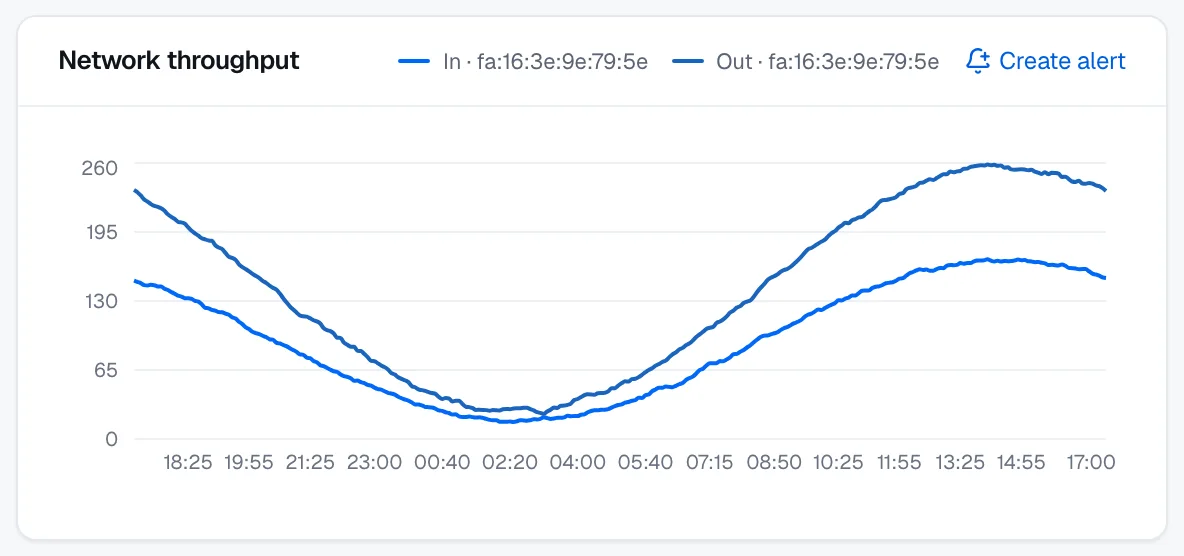
Create an alert from a chart
Charts with a metric that alert rules can watch show Create alert. The disk latency, page cache, and swap charts don't, because those metrics can't be alerted on.
On the chart, select Create alert.
Complete the alert rule form, and select Create rule. See Create alert rules.
The form opens with VM metric selected, the chart's metric, and a threshold above the highest value in view:
- For CPU and memory utilization: 10 points above the highest value, rounded up to a multiple of 5, but at least 80 % and at most 95 %. With no values in view, 80 %.
- For other metrics: one and a half times the highest value, rounded up to two significant digits. With no values in view, or only zeros, 1.
A chart with several lines starts the form with the first one, for example read throughput. You can choose another metric in the form. The rule doesn't target the instance by its ID: the form offers the instance's tags as tag selector pairs that you can add with one click.
Result
With monitoring on, the Monitoring tab charts the instance's metrics from the moment you turned it on, and refreshes them every minute. From that moment, monitoring is billed for the instance, when it has a price in your region.
Troubleshooting
| Message | Cause | Resolution |
|---|---|---|
| Monitoring is off | Monitoring is off for the instance. | Select Turn on monitoring. |
| No metrics yet | The instance isn't running on the cloud yet. | Wait until the instance's creation finishes. |
| No samples in this window yet. | The range has no samples, for example right after the instance was created. | Wait a few minutes, or select a longer range. |
| Metrics are temporarily unavailable | The metrics store can't be reached. | Try again shortly. |
| Couldn’t load metrics | The request for the metrics failed. | Reload the page. |
If the memory chart is empty: No memory data. Memory usage needs the guest to report available memory through a current balloon driver — on Windows, install a recent virtio balloon driver and its service.
Related
- Create alert rules
- Power states and billing
- Troubleshoot virtual machines
- To read an instance's metrics through the REST API, see GET
/scopes/{scopeId}/compute/instances/{instanceId}/metrics.