
Find unprotected volumes
Use the Protection coverage tab of Backup Center to find volumes that no backup plan protects, check each volume's backup health, and protect it.
Backup Center's Protection coverage tab lists every volume of the project with the plan that protects it, so you can find the volumes that no plan backs up and the volumes whose backups aren't working.
Before you begin
- Any role with Read access to Block & Object Storage lets you see protection coverage. To create plans or run them, you need the Owner or Contributor role, or a custom role with Manage access to Block & Object Storage.
Find unprotected volumes
In the console, go to StorageBackup Center. The Unprotected volumes tile shows how many volumes no plan protects.
Select the Protection coverage tab.
Select the Unprotected filter. To find a volume by name, use Filter volumes….
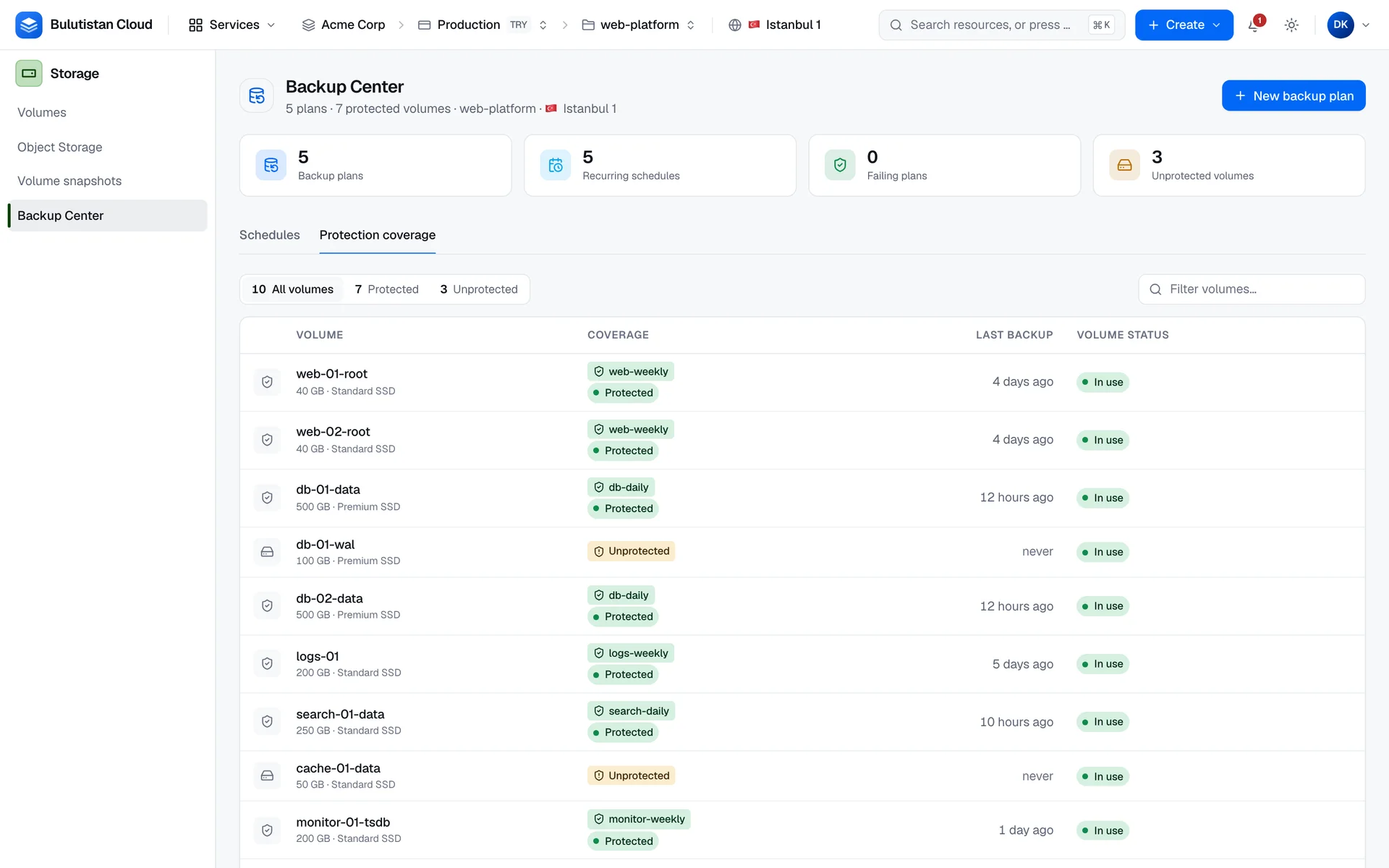
For each volume, the table shows its size and type, its Coverage, its Last backup, and its Volume status. A volume counts as protected on this tab when it's assigned to a plan, whatever the plan's state; the health badge under the plan's name shows whether the plan actually backs it up.
A volume whose only backups are in the read-only plan of migrated backups counts as unprotected. See Read-only plans.
Protect a volume
On the volume's row, open the Row actions menu, and select Create backup plan.
Complete the form for the new plan. The volume is already selected. See Create a plan.
To add the volume to a plan that already exists instead, assign it on that plan's page. See Assign volumes to an existing plan.
Check backup health
The badge under a protected volume's plan shows how the plan is doing for that volume:
| Health | What it means | What to do |
|---|---|---|
| Protected | The plan has backed up the volume, and its latest attempt neither failed nor was skipped. | Nothing. |
| Never run | The plan hasn't backed up the volume yet, for example because the volume was assigned after the last run, or because every attempt so far failed. | Wait for the next scheduled run, or run the plan now. If attempts fail, check the run results. |
| Last run failed | The plan backed up the volume before, but the latest attempt failed. | Check the volume's result in the latest run, and retry it. See Per-volume results. |
| Last run skipped | The plan backed up the volume before, but the latest run skipped it, for example because it was in an error state. | Fix the volume, and then retry the failed volumes of that run. |
To back up a protected volume right away, open its Row actions menu, and select Run plan “<plan>” now. This runs the whole plan, so it backs up every volume that's assigned to the plan, not only this one.
Check a single volume
A volume's own page shows its protection on the Backups tab: the plan that covers it, the plan's state, the volume's backup health, and its recovery points. A volume that no plan covers shows Not protected. See Protect a volume.